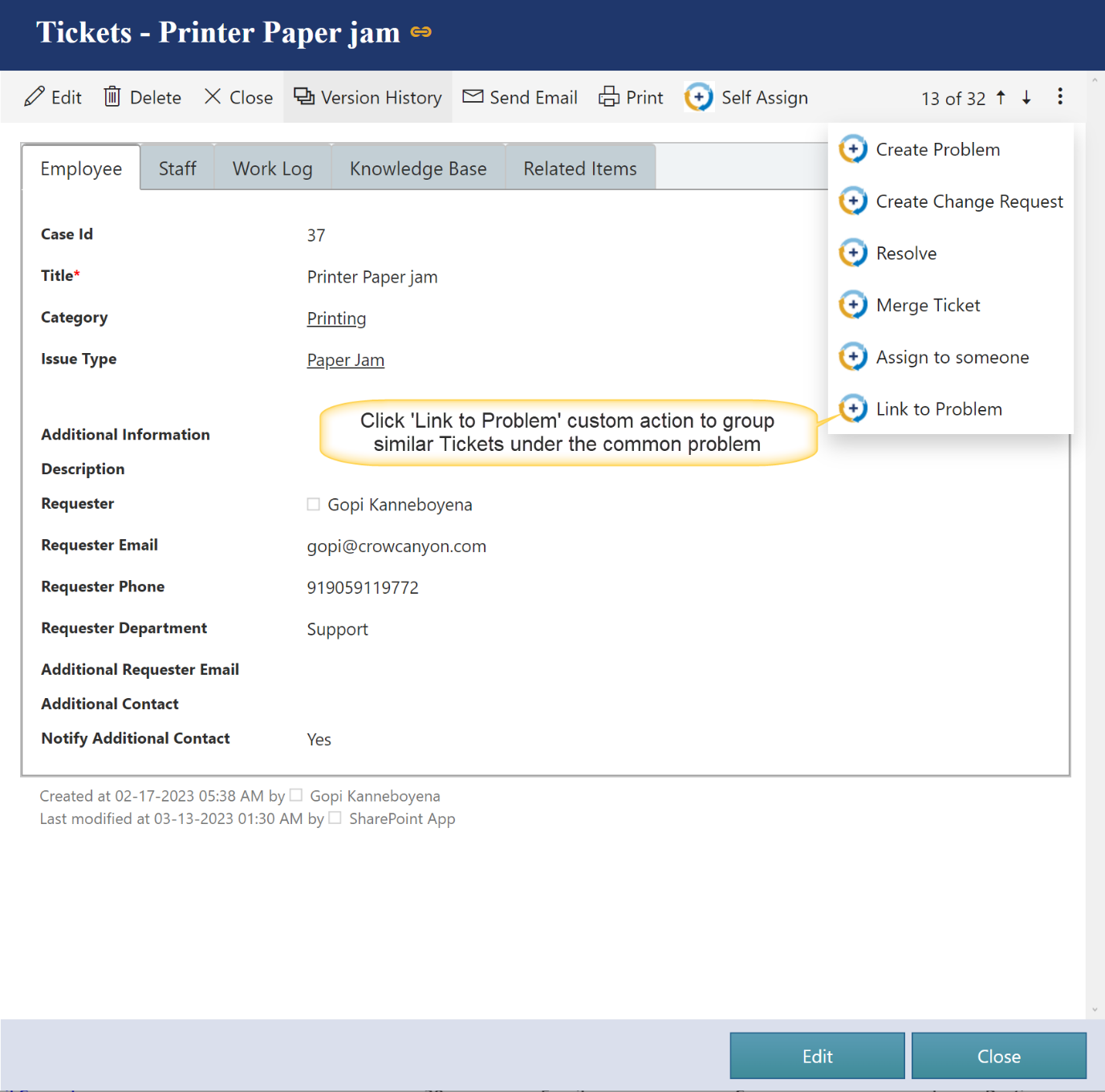
Managers can take action on Tickets either from the tabular view (List View) or by opening a Ticket. Custom Actions available for the Manager to perform on a Ticket are shown below:
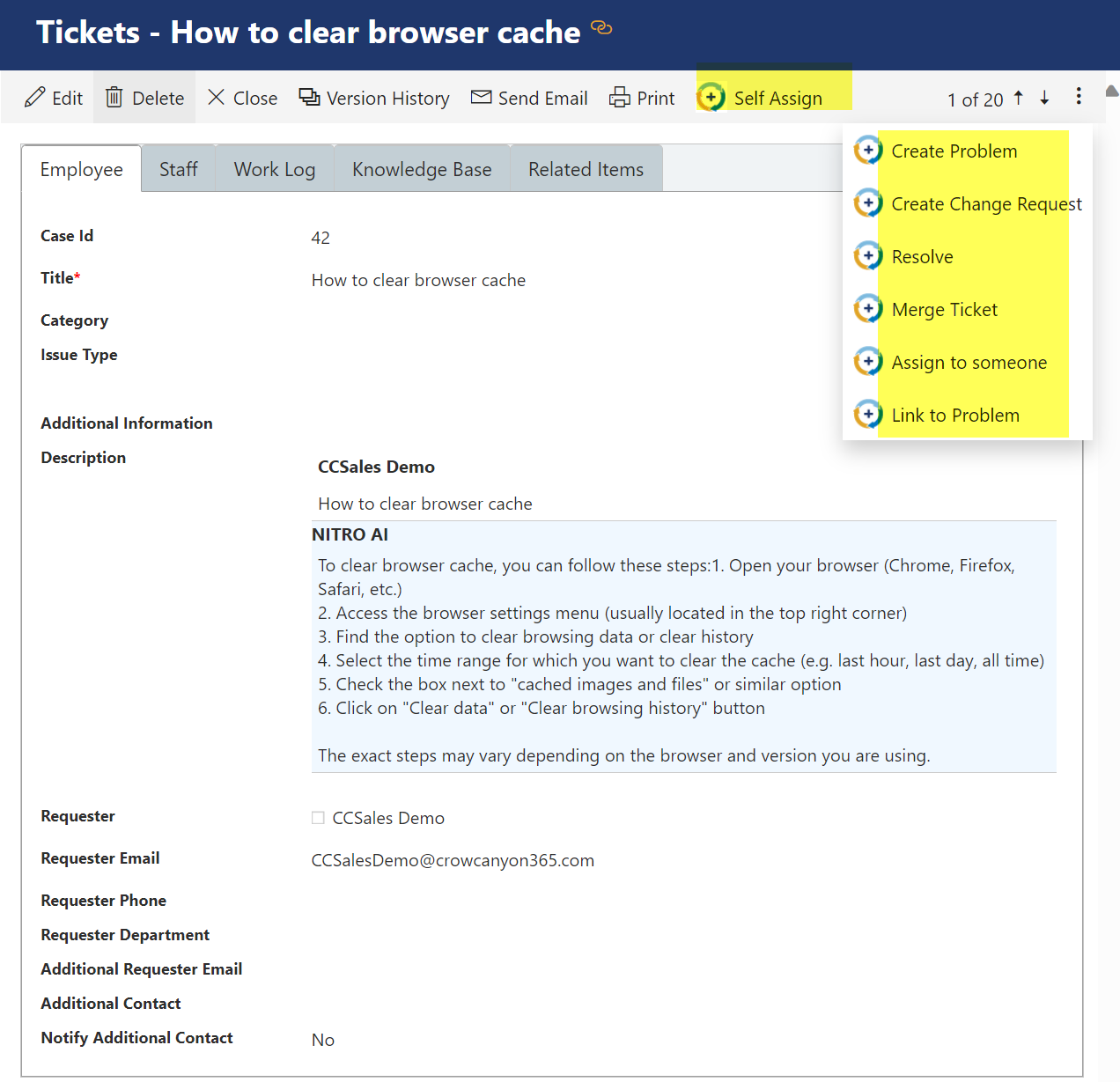
•Self Assign: Manager can Assign a Ticket to themselves by clicking “Self Assign” action Available in the Ticket.
•Create Problem: Manager can create a problem in the Problems list by clicking the “Create Problem” action. A form will open and, in this form, ‘Title’, ‘Category’ and ‘Issue Type’ columns will automatically populate from the Ticket on which custom action has been invoked. Enter additional details and click the ‘Save’ button to create a problem as shown below:
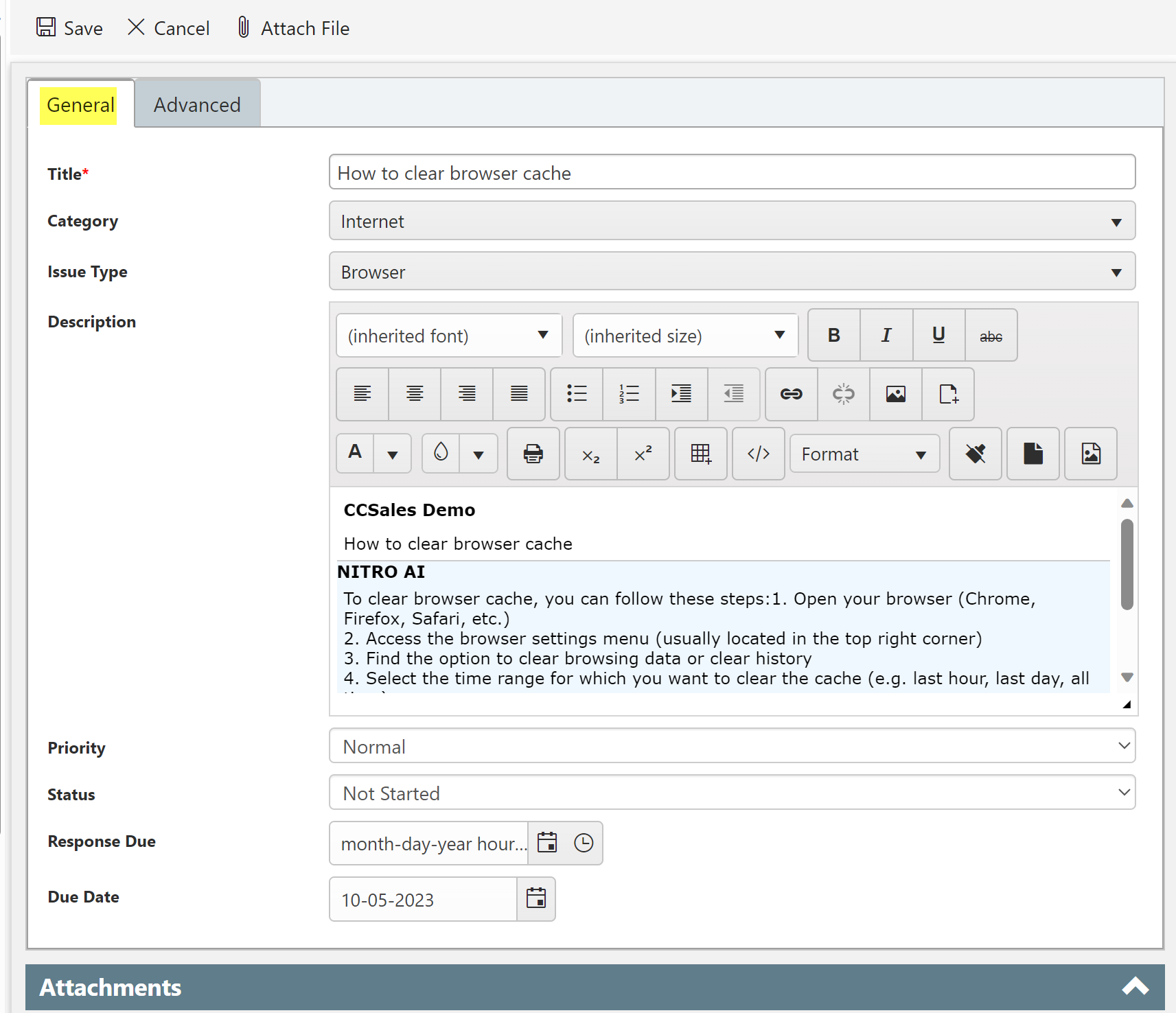

Fill the details and click ‘Save’ button.
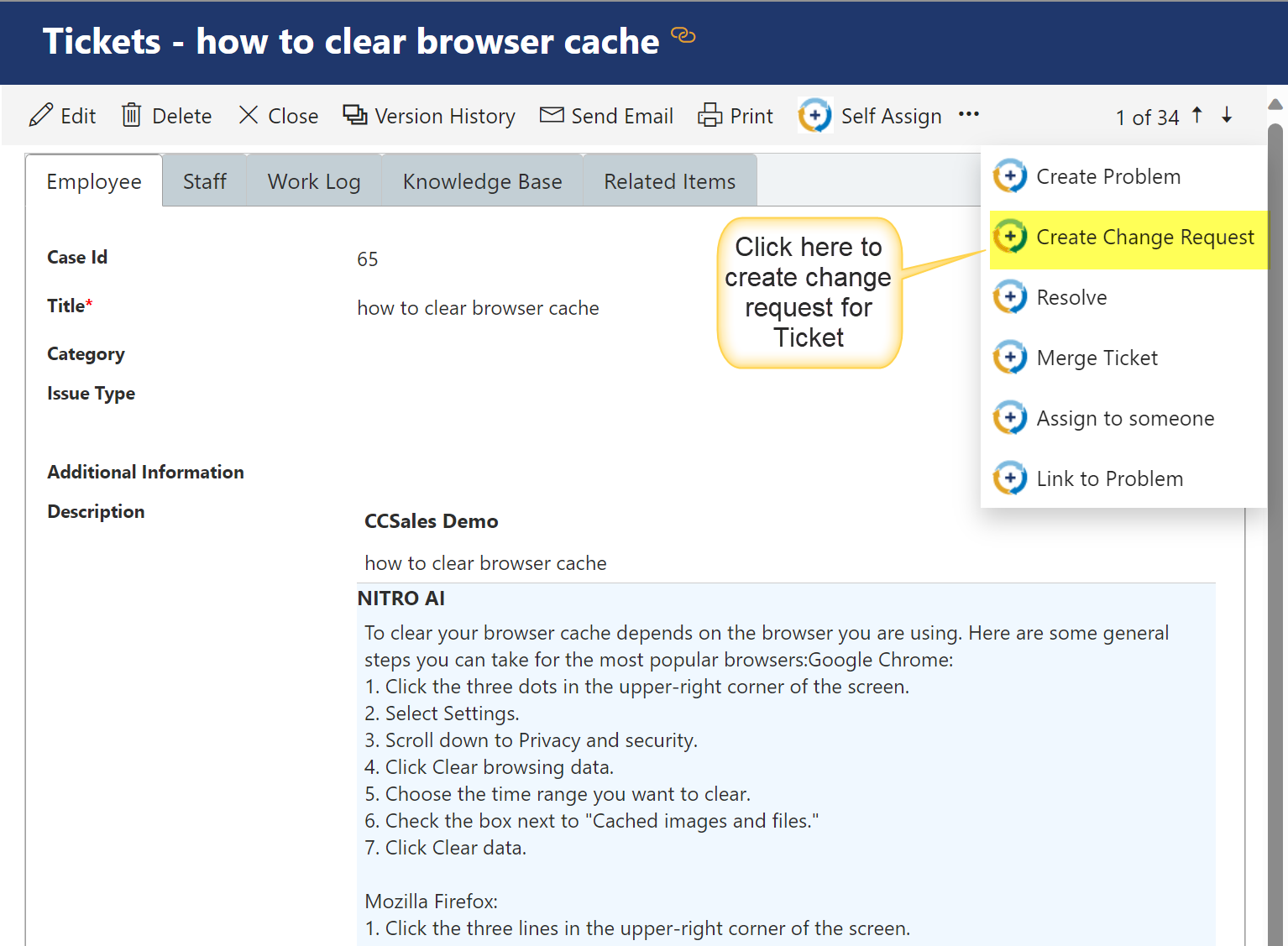
•Create Change Request: Manager can create a Change Request in the Change Requests list for a Ticket By clicking “Create Change Request” action. A Change Request form opens in which Manager can fill details as shown below. On submission it creates a Change Request.
A Change Request form will open as shown below:

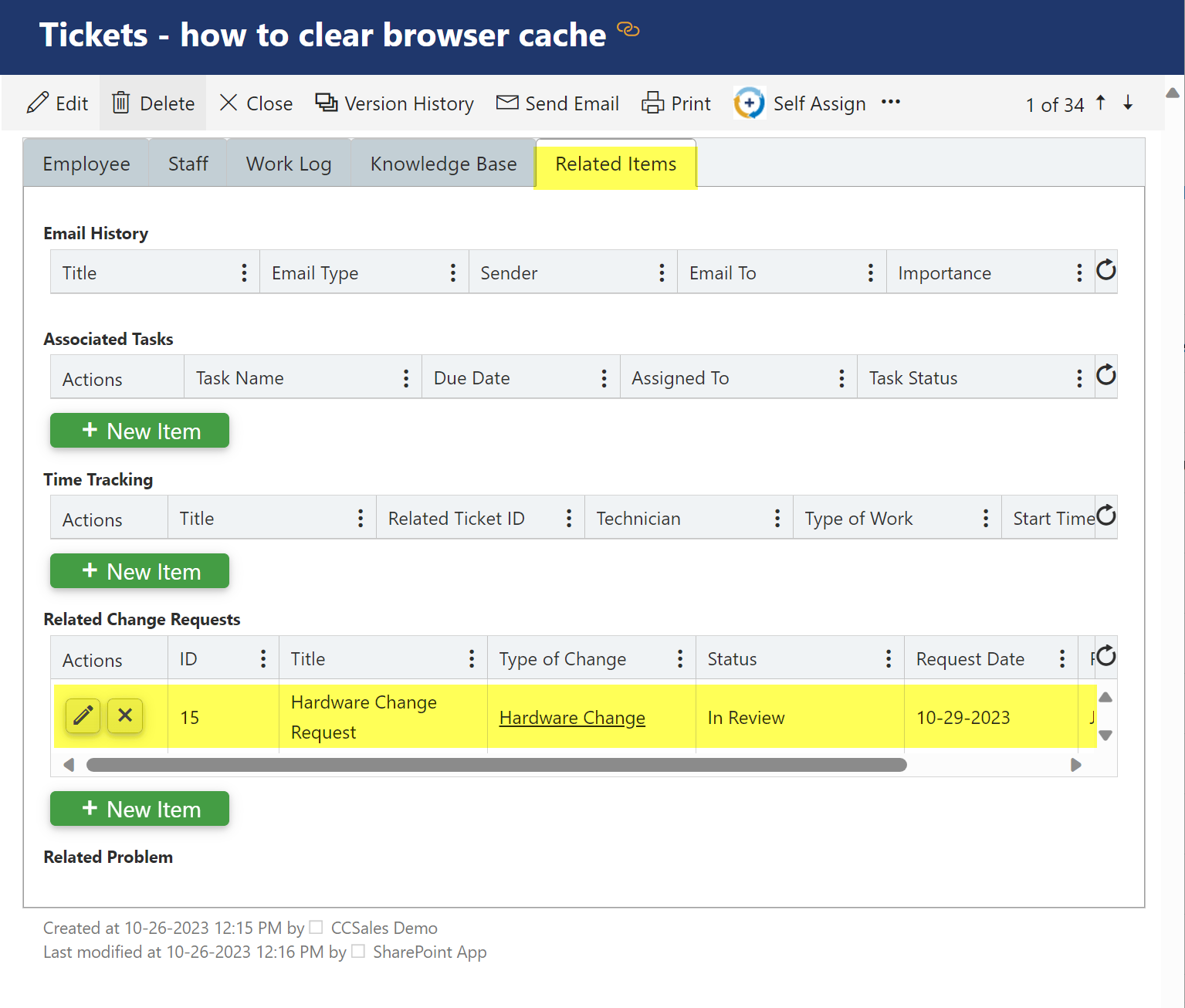
After filling all details in all tabs, click Save button. It will create change request and link it to Ticket for which action is executed as shown below:
•Resolve: Manager can resolve the Ticket by clicking “Resolve” action available in the Ticket. This will open a resolution page as shown below:
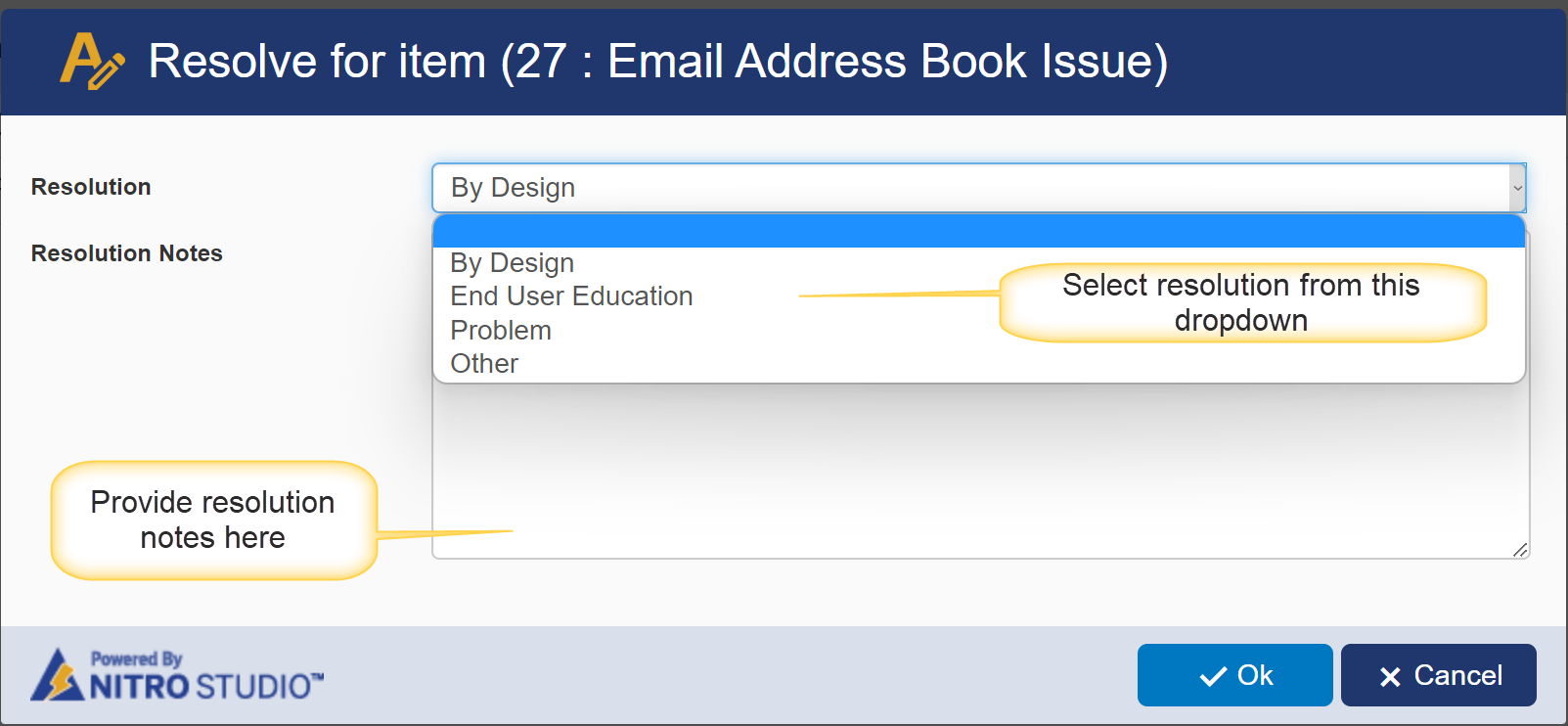
The “Resolution” and “Resolution Notes” are required fields to resolve a Ticket.
•Merge Tickets: Manager can merge Tickets when same user submits multiple Tickets for the same issue or different users submit Ticket for the same issue.

For more details on Merge Ticket, refer below link:
https://www.dropbox.com/scl/fi/ms3xpqs9603pbe4x1hsoi/Merge-Tickets.docx?rlkey=k8n10p7xfxliqb4qmmtgb3x2x&dl=0
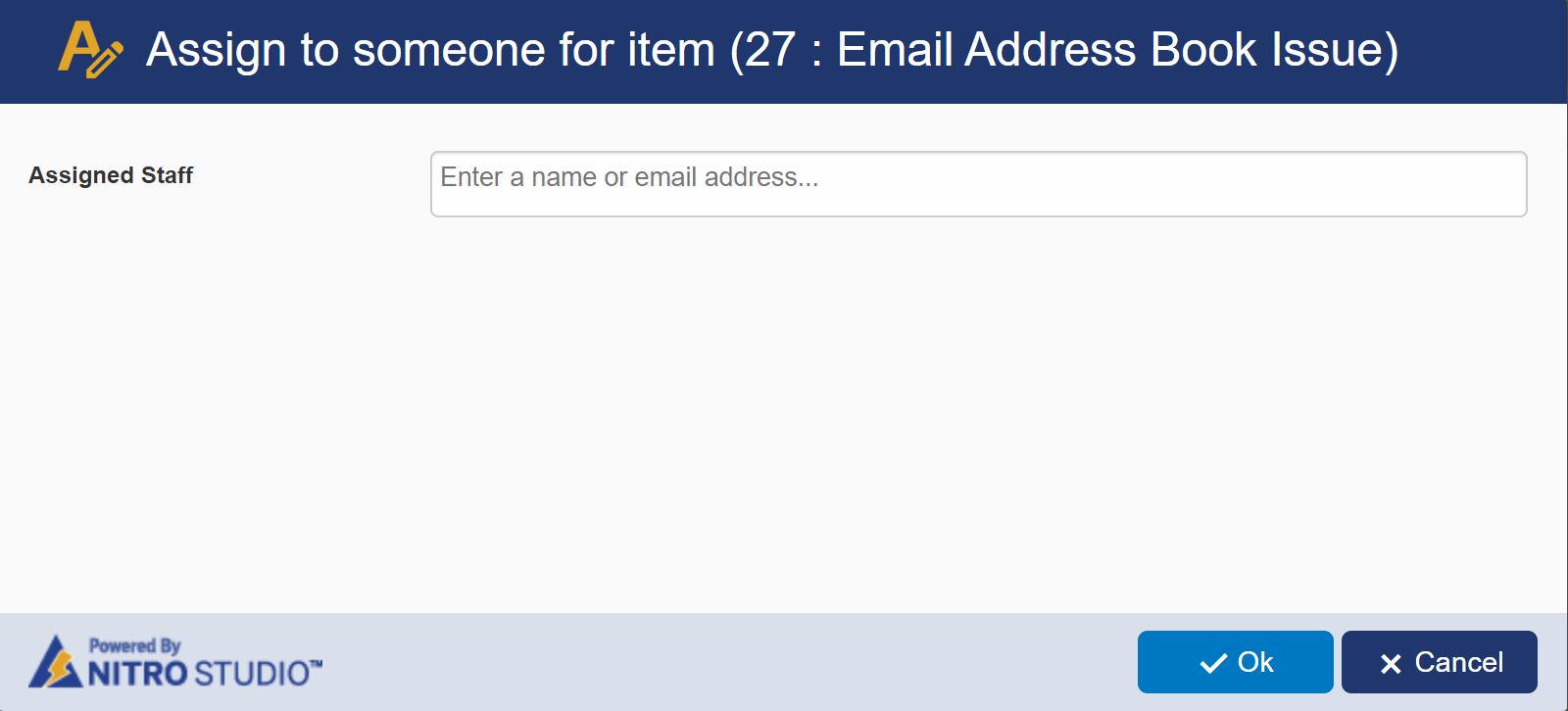
•Assign to someone: Manager can Assign Ticket to someone else by clicking “Assign to someone” action available in the Ticket. Manager will need to provide “Assigned Staff” name or email address to assign the Ticket as shown below:
•Link to Problem: Manager can link open Tickets to problems that have been already identified. This will help in grouping of similar Tickets under one common problem.
Other Actions that a manager can perform on a Ticket are:
•New: Manager can create a new Ticket by clicking ‘New’ button available in upper left corner of ‘My Tickets’ views.
•Item Print: Manager can print an item by selecting the item and clicking on ‘Item Print’ button.
•List Print: Manager can print the list by clicking ‘List Print’ button available in the ribbon.
Refer below article to setup print templates through Print Manager
https://www.crowcanyon.info/nitro/appmanual_v2/print-manager.html
•Send Mail: Manager can also send mail by clicking ‘Send Mail’ button available in the item ribbon.
Refer below article to configure email templates through Email Manager
https://www.crowcanyon.info/nitro/appmanual_v2/advanced-email.html
•Delete: Manager can delete a Ticket by selecting it and clicking ‘Delete’ button.