To open CR - Staff - Workspace page follow below steps:
Open Home Page and go to Quick Launch -> click Change Requests
This will open a CR - Staff - workspace page as shown below:

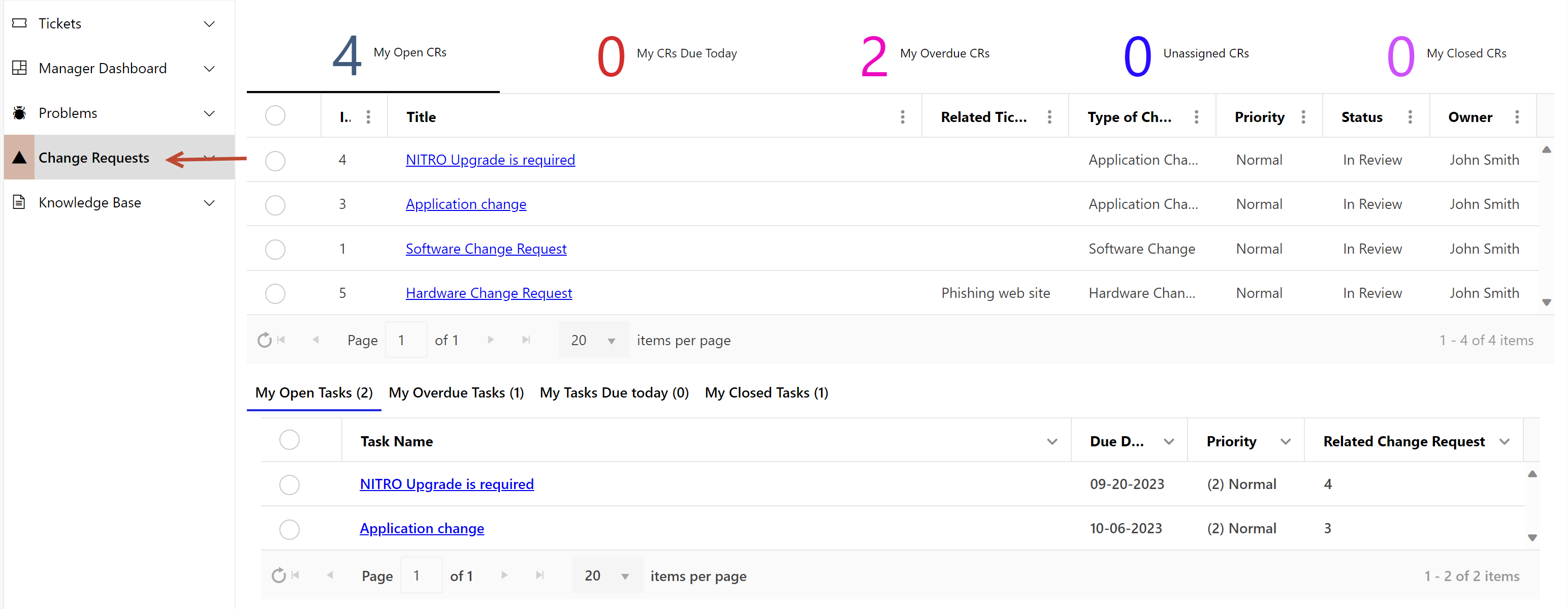
Assigned staff has the authority to see
•My Open CRs
•My CRs Due Today
•My Overdue CRs
•Unassigned CRs
•My Resolved CRs
•My Open Tasks
•All Overdue Tasks
•My Tasks Due Today
•My Closed Tasks
•Reports
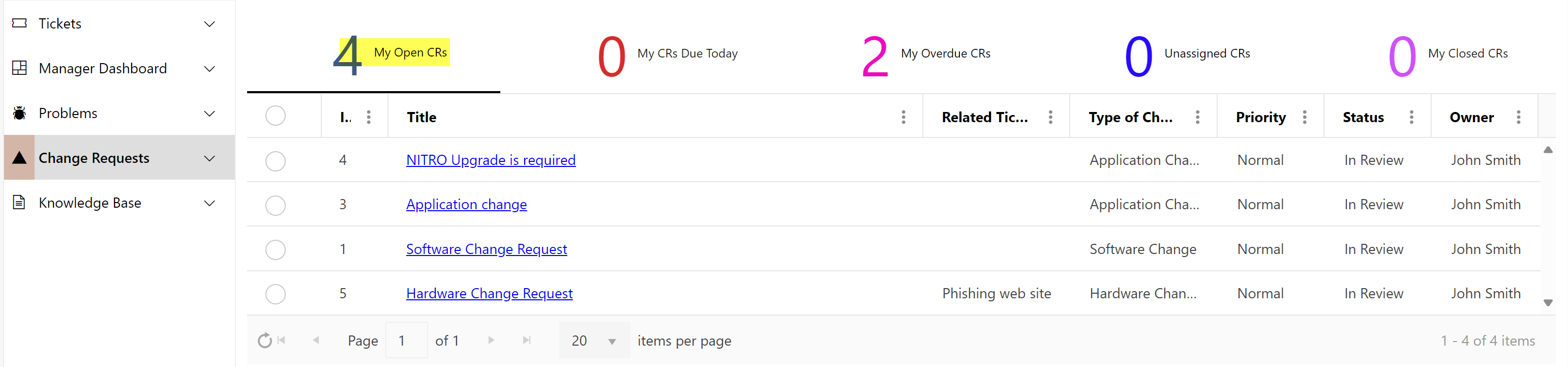
My Open CRs
Assigned staff can view all assigned open change requests by clicking “My Open CRs” as shown below:

A change request undergoes an approval process.
Change Request Approval Process typically goes through below mentioned steps
1.Create Change Request: A change request is initiated and submitted. This should include the details regarding the change that is required, the reason for the request and other relevant details that can help understand the approver the impact of change.
2.Approval: The change request is reviewed by the approver and approved/denied as per assessment done. There can be multiple level of approvals required based on impact of the change. Once approved, the change request is assigned to the appropriate team to implement it.
3.Implementation: Approved change requests are assigned to the team. Team makes appropriate changes and implements it.
4.Close: Once implemented successfully or if denied then Change Request is closed.
My CRs Due Today
Assigned staff can view all assigned change requests that are due for today by clicking “My CRs Due Today” as shown below:


My Overdue CRs
Assigned staff can view all overdue CRs by clicking ‘My Overdue CRs’ as shown below:


Unassigned CRs
Assigned staff can view all un assigned CRs by clicking ‘Unassigned CRs’ as shown below:


My Closed CRs
Assigned staff can view all closed CRs by clicking ‘My Closed CRs’ as shown below:


My Open Tasks
Assigned Staff can view all assigned open tasks by clicking “My Open Tasks” as shown below:

My Overdue Tasks
To see all overdue Tasks, click ‘My Overdue Tasks’ view as shown below:

My Tasks Due Today
To see assigned staff tasks that are due for today, click “My Tasks Due Today” view as shown below:

My Closed Tasks
To see assigned staff closed tasks, click “My Closed Tasks” view as shown below:

Reports
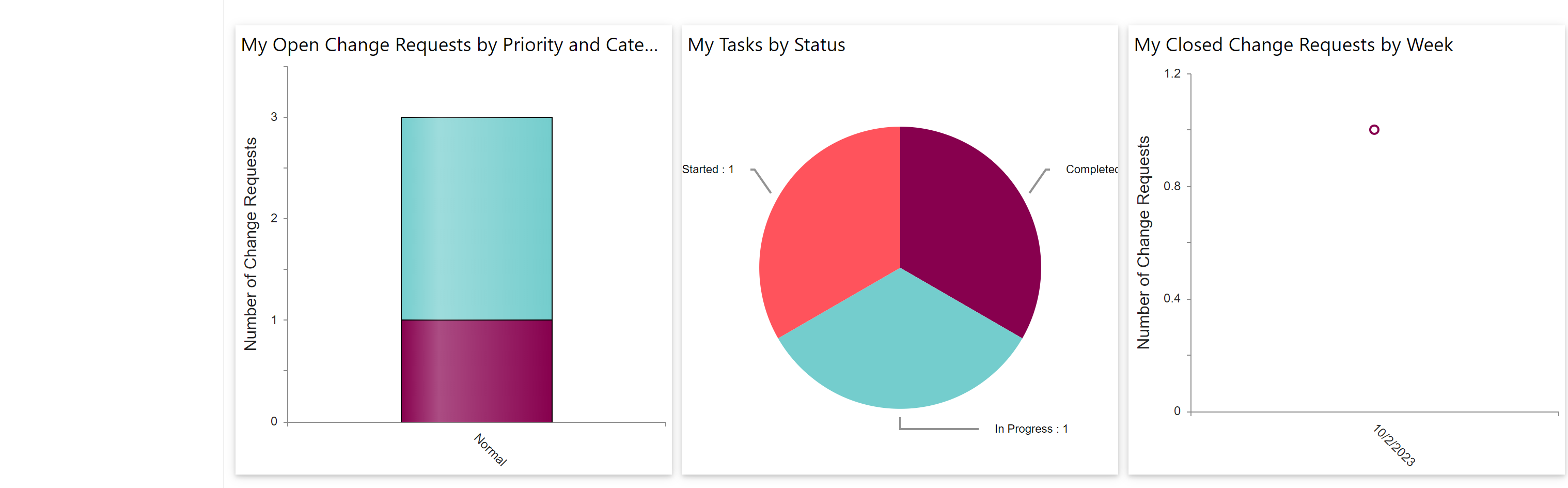
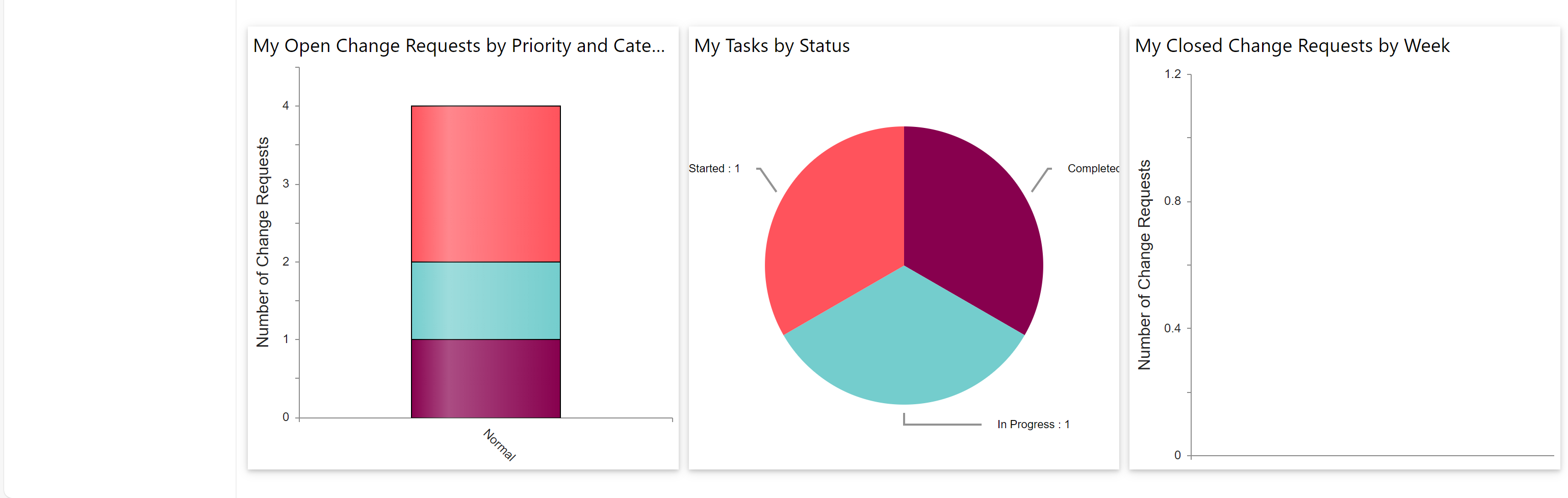
‘CR - Staff - Workspace’ page also show Reports for
1.My Open Change Requests by Priority and Category
2.My Tasks by Status
3.My Closed Change Requests by Week