Setup Categories and Issue Types
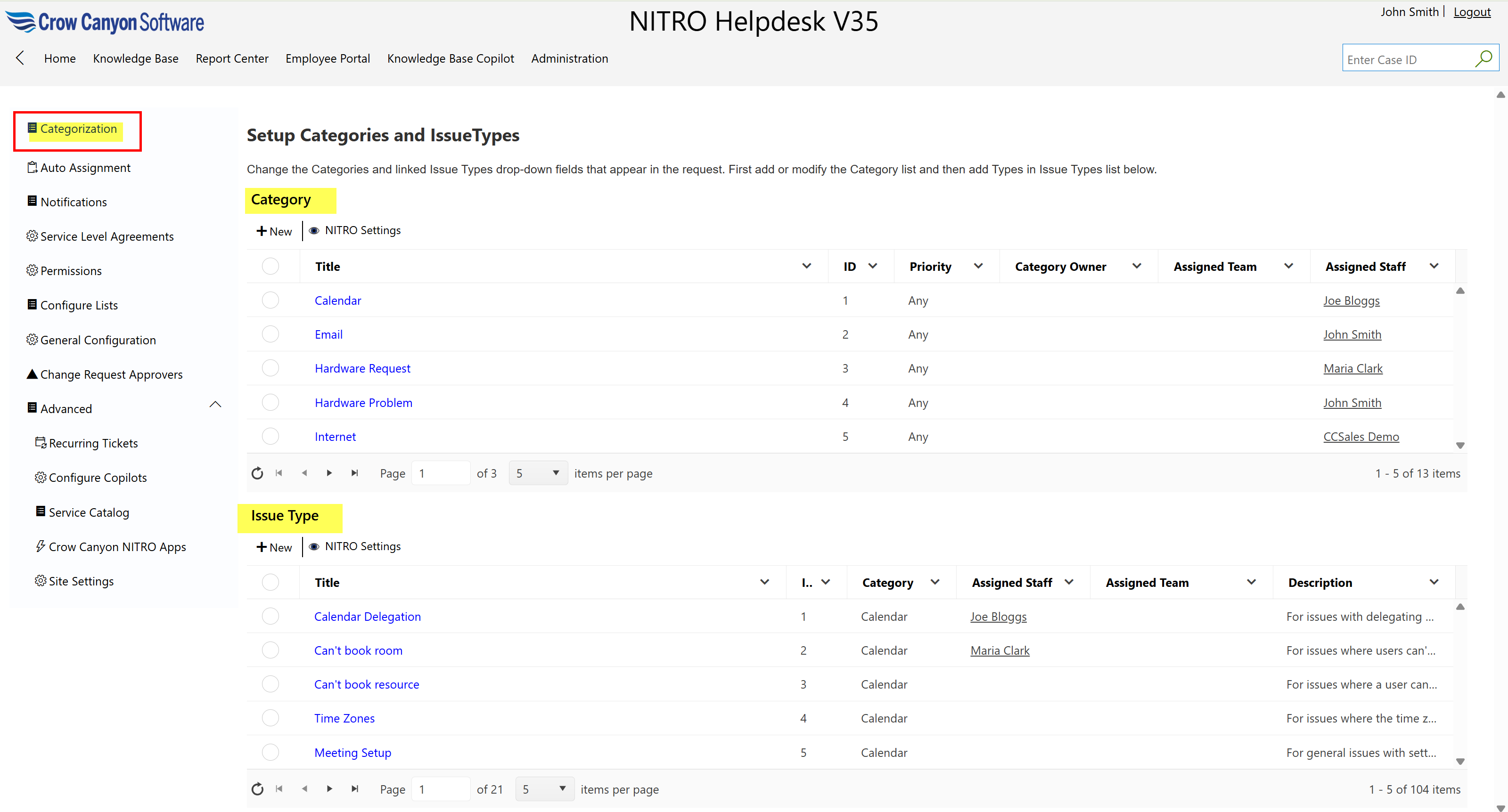
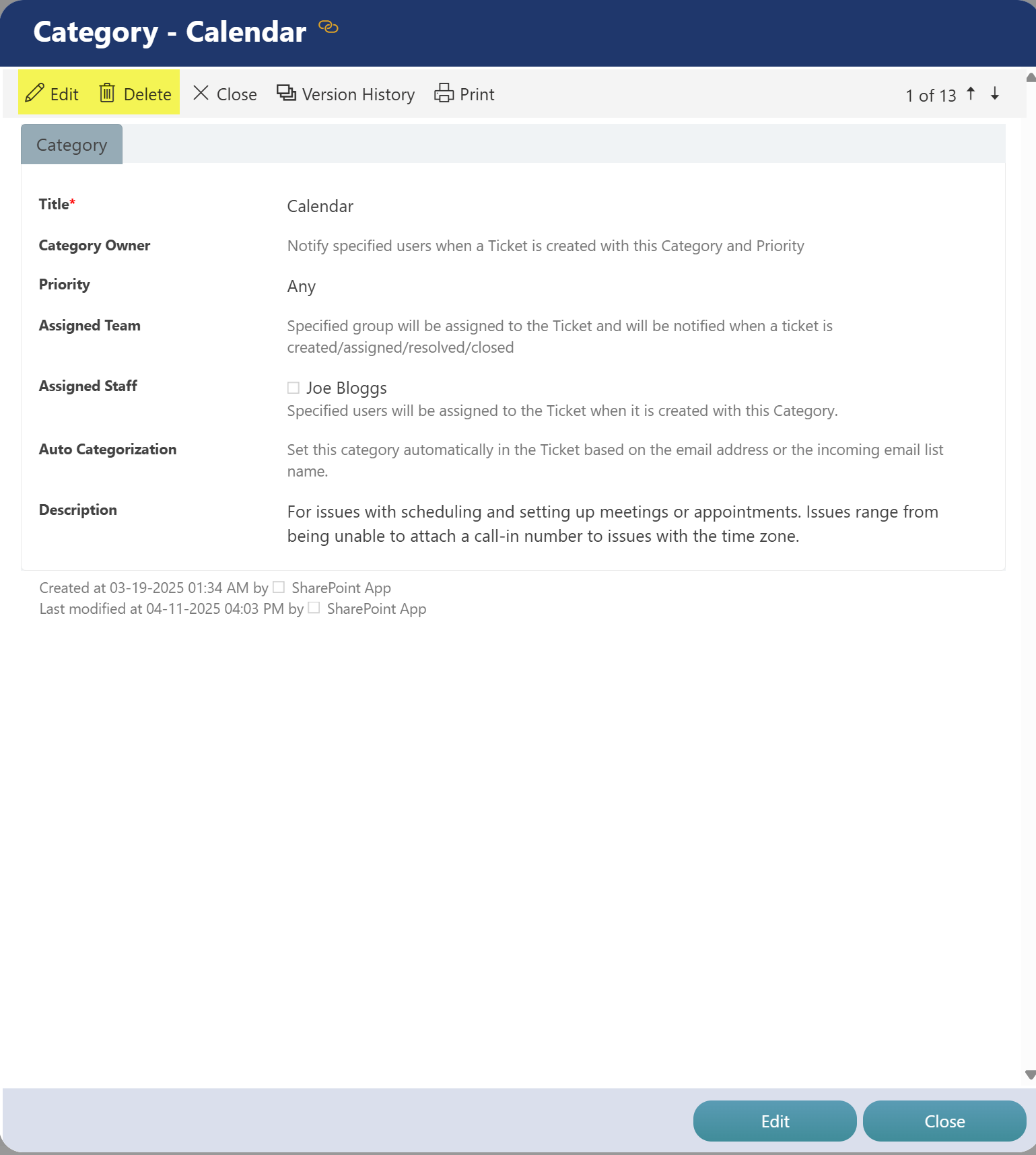
Administrator can change the Categories and linked Issue Types drop-down fields that appear in the request. First add or modify the Category list and then add Types in Issue Types list below.
Category List
The Category list defines the broad classification or main area of the request. It helps organize and group issues at a higher level.
Key Fields in Category List:
•Title: The name of the category (e.g., Email, Internet, Hardware Request)
•Priority: Sets a default priority level for issues under this category (optional)
•Category owner: The person that gets notified when a Ticket is created with this Category
•Assigned Staff: A default user to whom issues in this category will be assigned (if Issue Type doesn’t override)
•Assigned Team: SharePoint group that will be notified when a Ticket is created with this Category. This group will also be placed in the Assigned Team field on the ticket. Note: This does not change the ticket’s status to ‘Assigned’. It will remain ‘Unassigned’ until the Assigned Staff field is filled out either by an automated process or manually.
Example: If the user selects "Internet" as a category, the system may assign the ticket to CCSales Demo (as per data) if no specific staff is set in the issue type.
Administrator can:
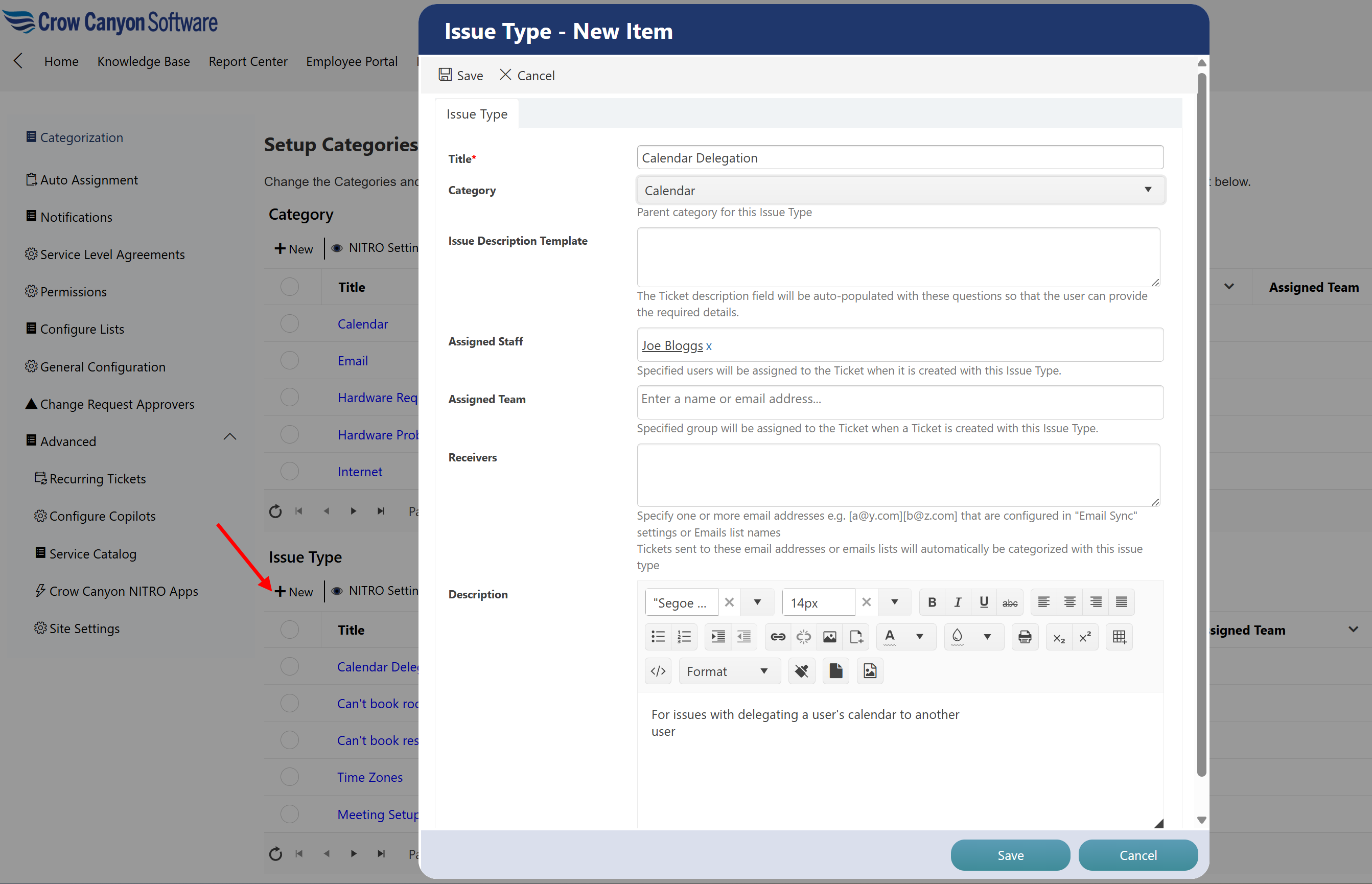
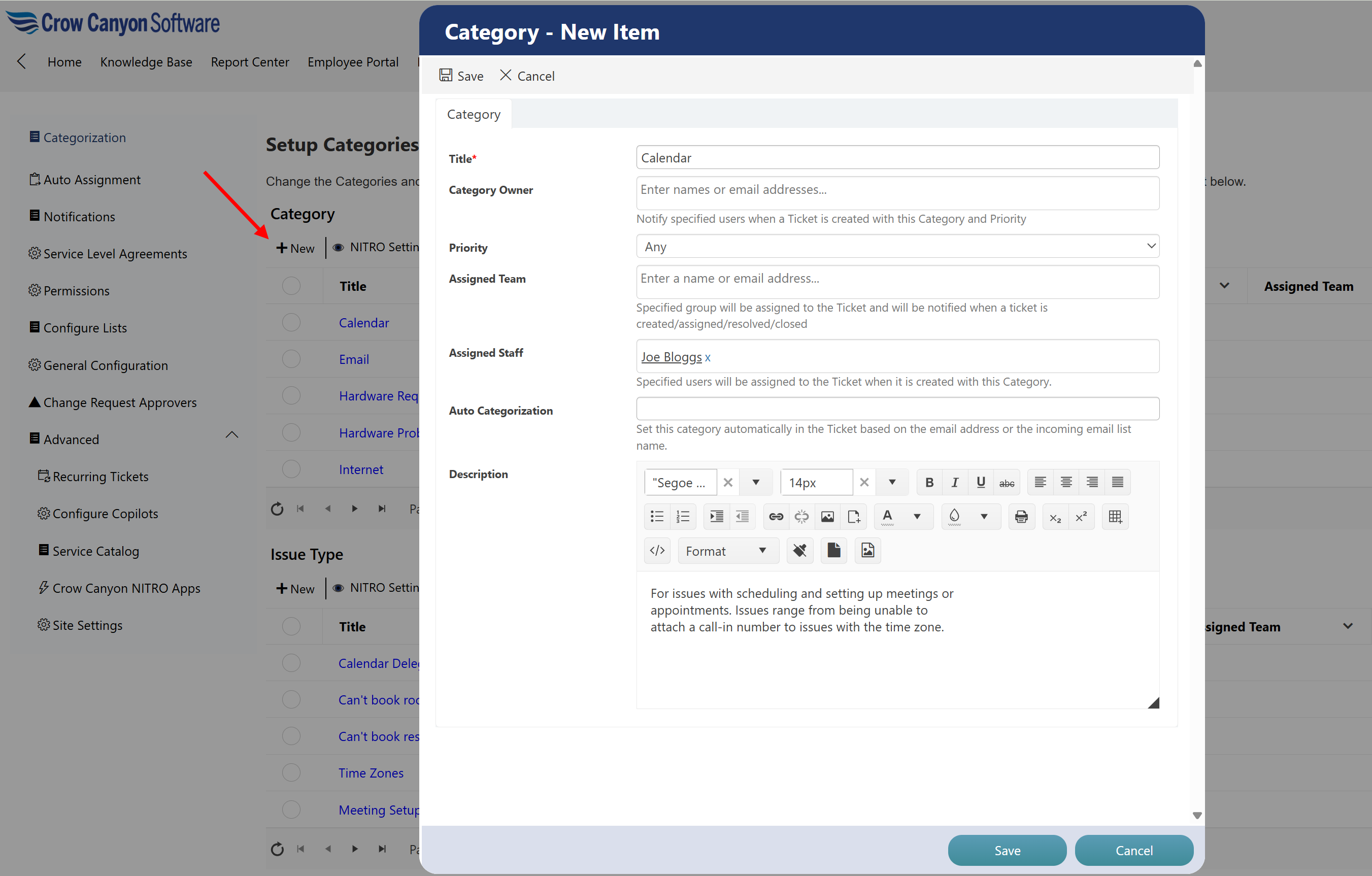
•Create a new Category by clicking the ‘New’ button available in the upper left corner of Category.
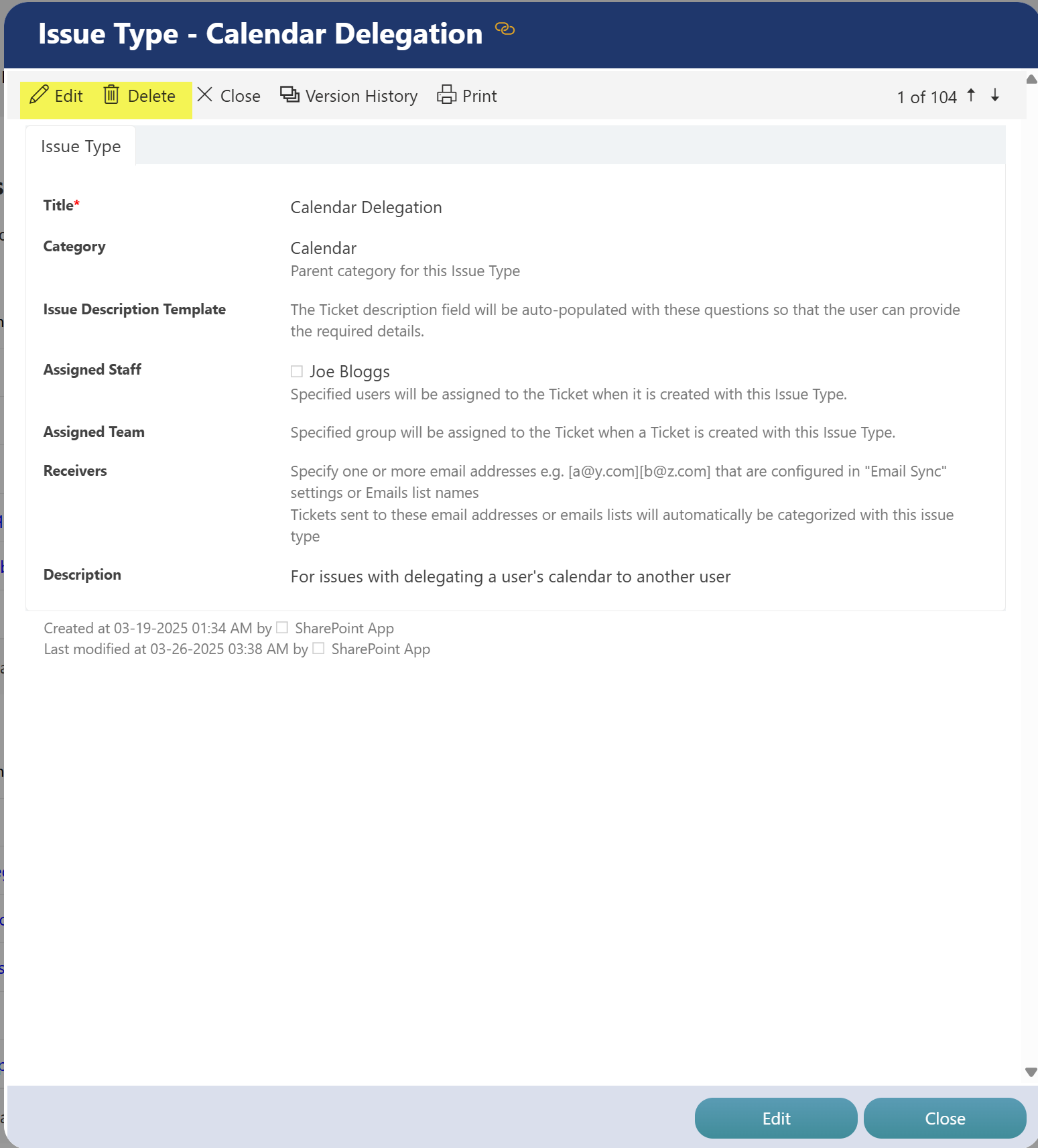
•Can edit the Category by clicking item in Category and then ‘Edit’ button
•Can delete the Category by clicking ‘delete’ button available in item ribbon
oUse caution when deleting Categories as this will impact any tickets that have been created with this Category.
Issue Type list:
The Issue Type list defines specific types of problems or requests under each Category. It provides more detail so tickets can be routed or handled accurately.
Key Fields in Issue Type List:
•Title: A specific issue (e.g., Can't book room, Time Zones)
•Category: The category this issue type belongs to (e.g., Calendar)
•Assigned Staff: A staff member to assign for this particular issue type (overrides category-level assignment)
•Assigned Team: Optional team responsible for handling this issue type
•Description: A short description to help users understand the issue type's purpose
Example:
•Category: Calendar
•Issue Type: Can't book room
•Assigned Staff: Maria Clark
So, if a user selects Calendar and Can't book room, the system will assign it to Maria Clark.
Administrator can:
•Create new Issue Type by clicking ‘New’ button available in upper left corner of Issue Type
•Edit the Issue Type by clicking on the item in the Issue Type list and then the ‘Edit’ button.
•Delete the Issue Type by clicking the ‘delete’ button available in item ribbon.
oUse caution when deleting Issue Types as this will impact any tickets that have been created with this Issue Type.