1.Go to the Tickets Form in the NITRO Helpdesk configuration.
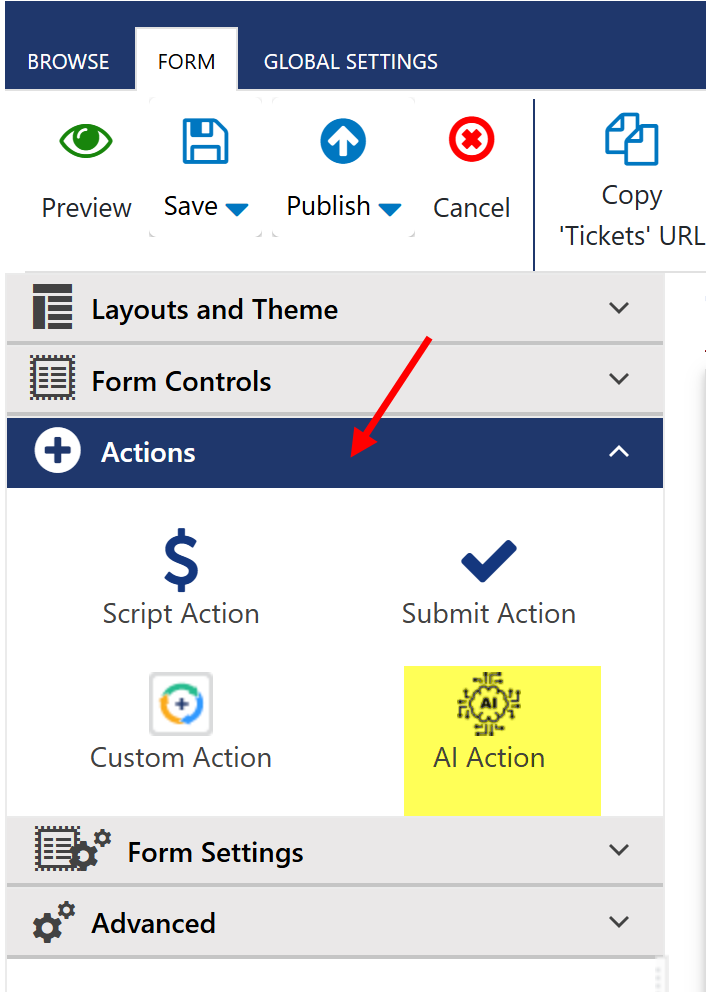
2.Expand Actions.
3.Drag and Drop AI Action button and configure button settings
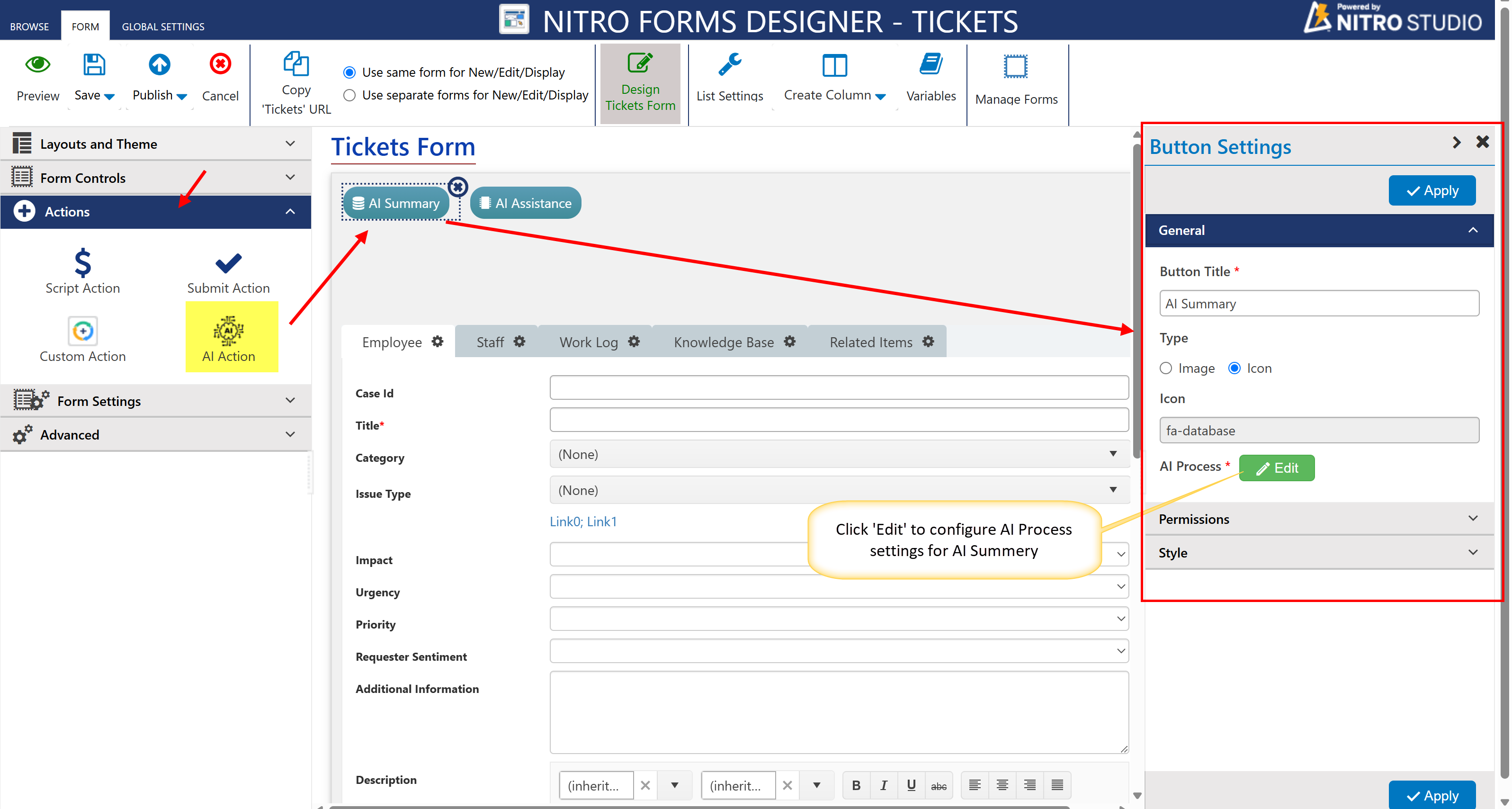
Navigate to Helpdesk site -> Administration -> Configure Lists -> Tickets -> NITRO Form in Tickets list ribbon -> Expland Actions -> drag and drop AI Action button on form and configure button settings for AI Summery
Button Settings
The Button Settings panel in the above image is used to configure the "AI Summery" button on the Tickets Form in NITRO Forms Designer.
•Button Title: Sets the label text displayed on the button (e.g., "AI Summery").
•Type: Chooses between displaying an image or an icon on the button.
•Icon: Defines the icon (e.g., fa-database) shown on the button.
•AI Process: Links the button to a configured AI process that runs on click.
•Permissions: Controls who can see or use the button based on conditions (collapsed by default).
•Style: Allows customization of the button’s appearance like color or size (collapsed by default).
•Apply: Saves and applies all the button settings to the form.
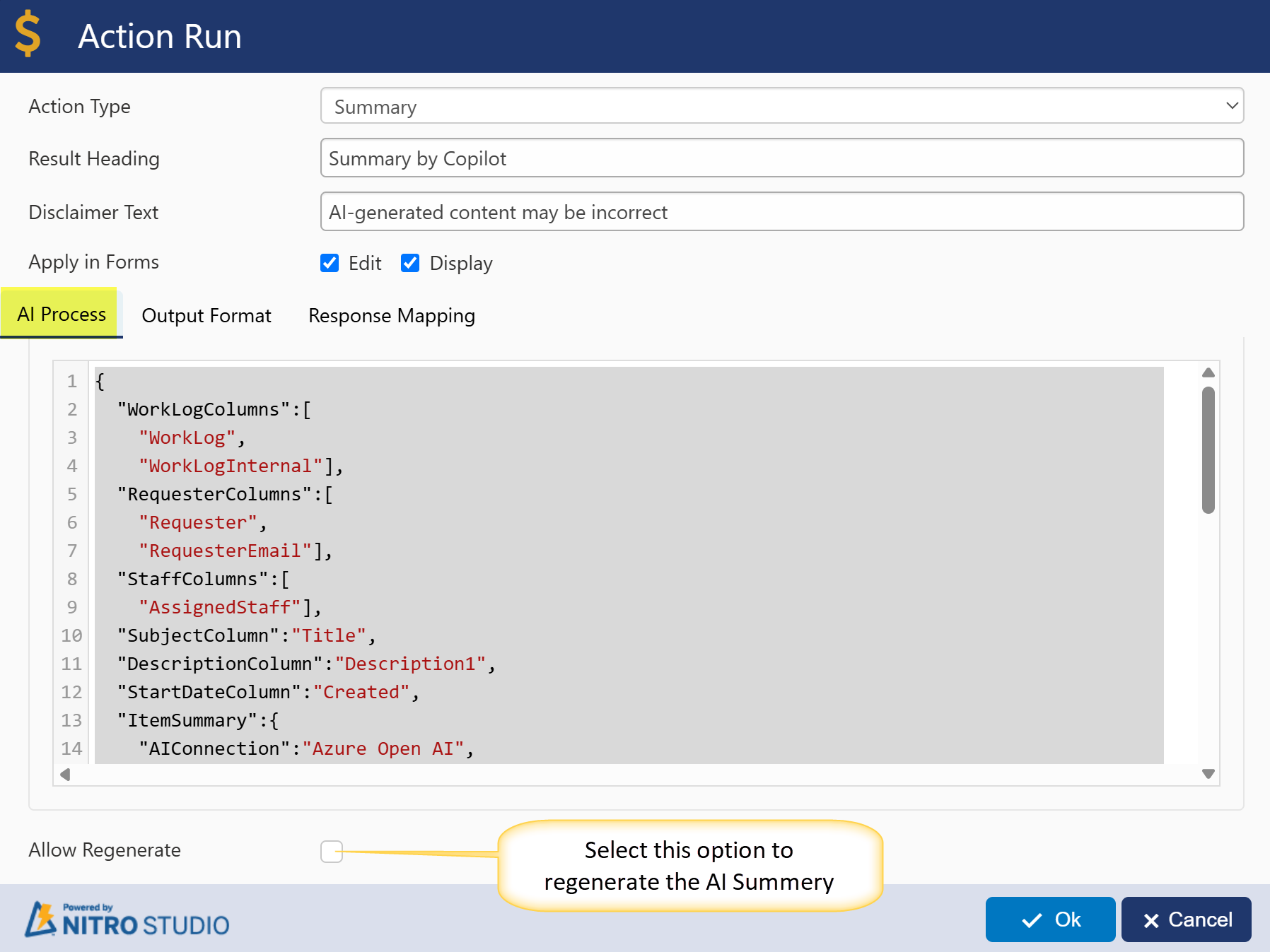
Click ‘Edit’ button in AI Process to configure settings for AI Summery. A window will pop up, enter JSON for ‘AI Process’, ‘Output Format’, and ‘Response Mapping’.
AI Summary Action Settings
•Action Type: Set to Summary to generate an AI-based summary.
•Result Heading: Displayed as Summary by Copilot above the AI-generated output.
•Disclaimer Text: Shows the message AI-generated content may be incorrect below the summary.
Apply in Forms
•Edit Form: Enabled – summary is shown in the edit view.
•Display Form: Enabled – summary is shown in the display view.
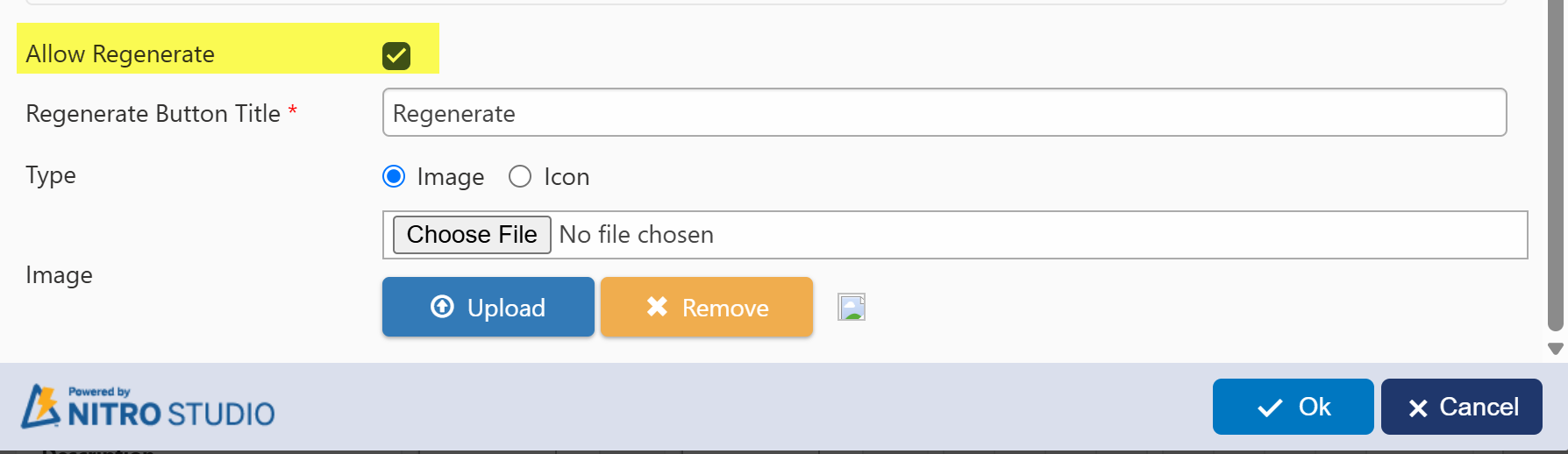
Regenerate Button Settings
•Allow Regenerate: Unchecked by default; enables a regenerate button if checked.
•Regenerate Button Title: Label text for the regenerate button.
•Type: Choose to show an Image or Icon on the button.
•Upload Image: Optional – upload a custom image for the regenerate button.
Behaviour Based on Regenerate Setting
•When Enabled:
A regenerate button appears on the form; users can click it to re-run the AI summary.
•When Disabled:
AI summary is generated only once per use and cannot be regenerated.
AI Process JSON Configuration
{ "WorkLogColumns":[ "WorkLog", "WorkLogInternal"], "RequesterColumns":[ "Requester", "RequesterEmail"], "StaffColumns":[ "AssignedStaff"], "SubjectColumn":"Title", "DescriptionColumn":"Description1", "StartDateColumn":"Created", "ItemSummary":{ "AIConnection":"Azure Open AI", "AIPrompt":"You are an assistant for IT Helpdesk staff users who work on end user issues. Generate a maximum of 500 word summary of the request submitted to the IT Help Desk system. This summary is for the staff so that they can quickly understand the user request and pending actions for them. Given below is full interaction history between user and the helpdesk agent so far in JSON format.", "Content":{ "LatestRequesterMessage":false, "IncludeStaff":true, "IncludeOther":true }, "Tokens":{ "Output":2000, "Input":10000, "Content":3000 }, "UserMessages":[ { "Message":"Interaction History JSON: %%[InteractionHistoryJSON]%%", "UseFromItem":true }, { "Message":"Latest staff message: %%[WorkLog]%%", "UseFromItem":false }] } } |
Explanation of AI Process Settings
This configuration controls how the AI-generated summary is created using ticket data.
Top-Level Columns Mapping
These define which form fields the AI will read from when creating a summary:
•WorkLogColumns:
Lists columns that store staff notes or communication logs.
→ Example: "WorkLog", "WorkLogInternal"
•RequesterColumns:
Lists fields that identify the requester (end user).
→ Example: "Requester", "RequesterEmail"
•StaffColumns:
Specifies columns that store assigned staff member information.
→ Example: "AssignedStaff"
•SubjectColumn:
Indicates which column holds the subject or title of the ticket.
→ Example: "Title"
•DescriptionColumn:
Specifies the column with the issue description.
→ Example: "Description1"
•StartDateColumn:
Refers to the field containing the ticket creation date.
→ Example: "Created"
ItemSummary Section
This part defines how the summary is generated using the AI engine.
•AIConnection:
Specifies which AI model/service to use.
→ Example: "Azure Open AI"
oThe AI Summary feature in the NITRO form is powered by Azure Open AI, which enables intelligent analysis and summarization of ticket content to identify the category or issue type automatically.
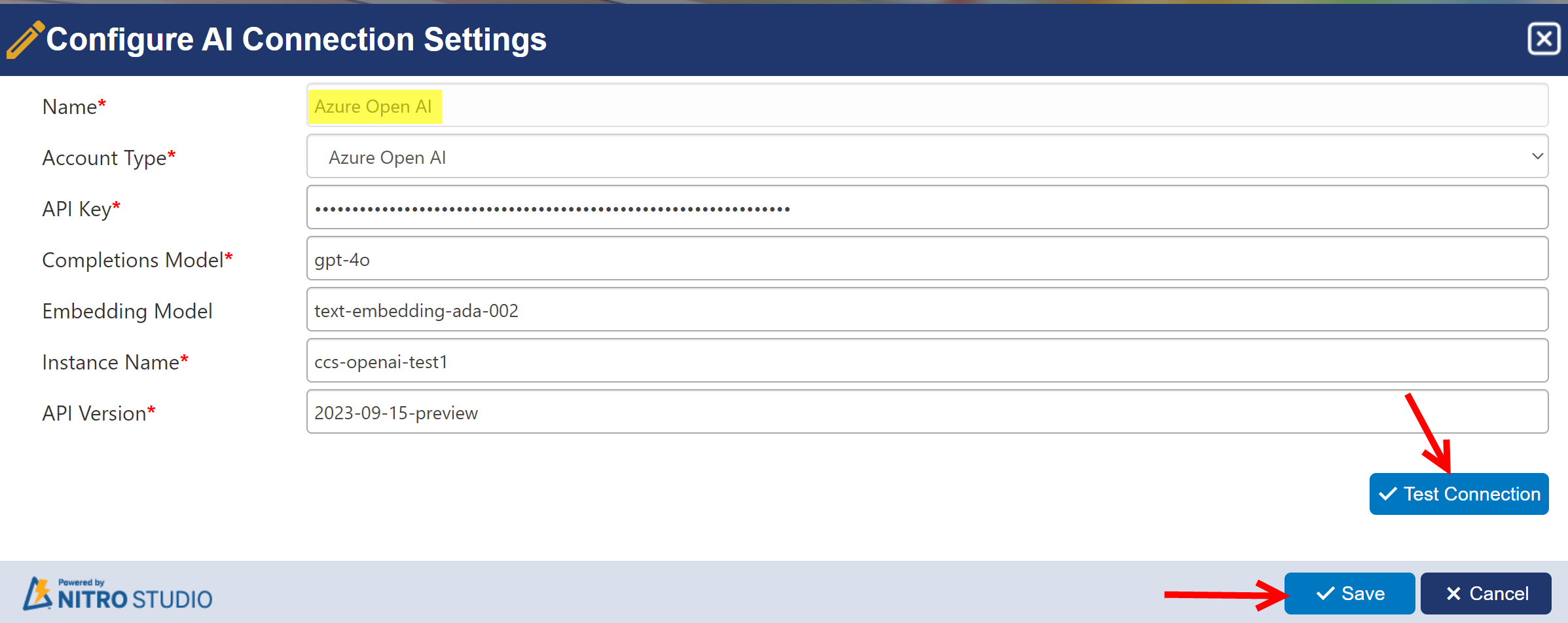
oThe AIConnection setting specifies the name of the Azure Open AI service configured in Crow Canyon NITRO Site Settings. This connection is essential for enabling AI-powered ticket summarization.
To create azure services, refer this article: https://www.crowcanyon.help/article/747/
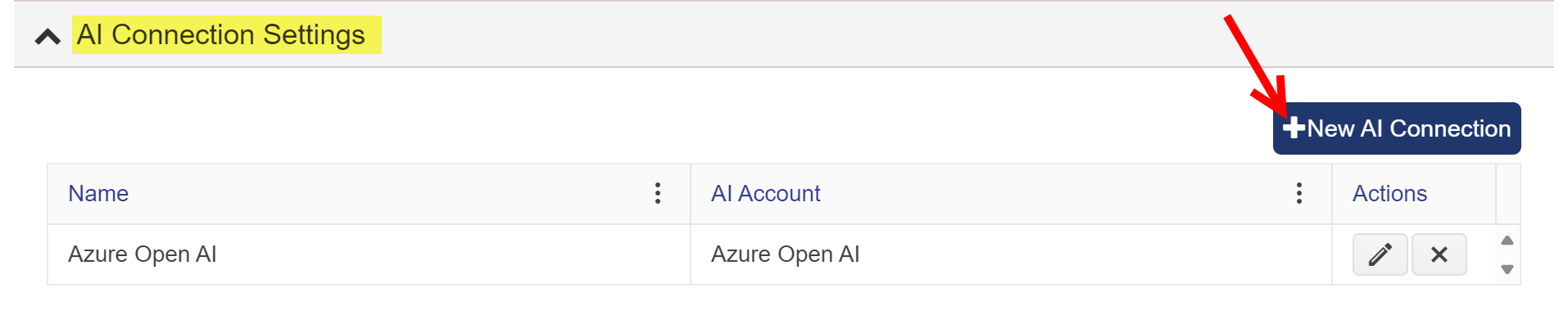
To configure AI connection settings in NITRO Site Settings, go to site settings ->Crow Canyon NITRO Site Settings -> AI Connection Settings -> New AI Connection
•AIPrompt:
A custom instruction for the AI.
→ Example: "You are an assistant for IT Helpdesk staff users..."
This guides the tone and purpose of the AI summary.
•Content Options:
oLatestRequesterMessage: false
→ Do not include the latest requester message directly.
oIncludeStaff: true
→ Include staff responses in the summary.
oIncludeOther: true
→ Include other relevant content such as system-generated or internal notes.
Tokens Section
Defines token limits to control how much text the AI processes:
•Output: 2000
→ Maximum tokens in the AI's response.
•Input: 10000
→ Total limit of input data passed to the AI.
•Content: 3000
→ Limit on actual ticket content fed to the model.
UserMessages Section
Represents custom messages sent to the AI in sequence:
1.Message 1:
"Interaction History JSON: %%[InteractionHistoryJSON]%%"
→ Sends a structured history of the conversation using a placeholder token.
→ UseFromItem: true means this data is fetched from the current item.
2.Message 2:
"Latest staff message: %%[WorkLog]%%"
→ Adds the most recent staff note.
→ UseFromItem: false means this message is constructed outside the current item scope (e.g., dynamically).
Purpose of This JSON
This configuration powers the AI Summary button in the helpdesk form by gathering the right data from the ticket and guiding the AI (Azure Open AI) to generate a meaningful, contextual summary for staff use.
Output Format
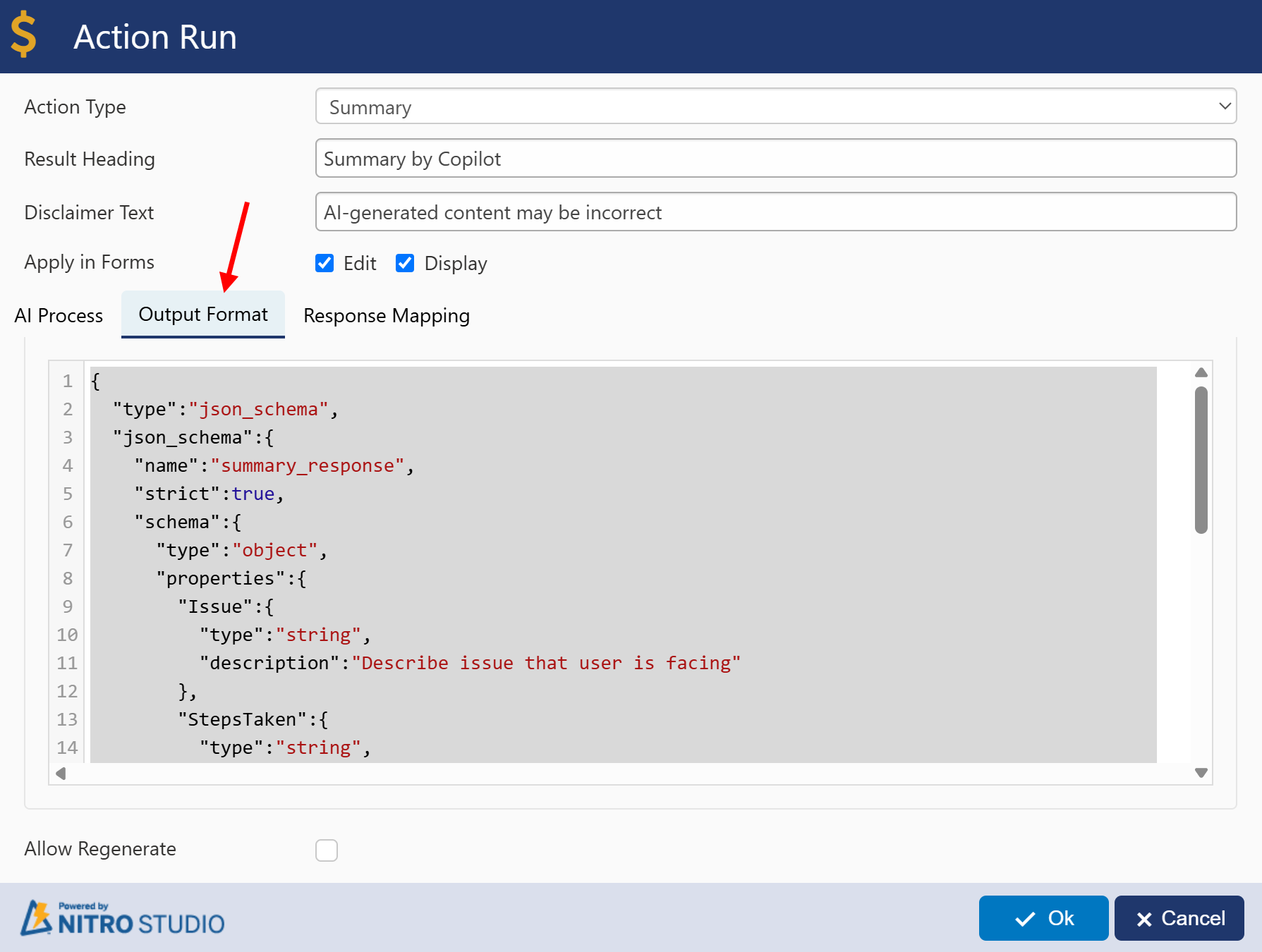
Output Format JSON Configuration
{ "type":"json_schema", "json_schema":{ "name":"summary_response", "strict":true, "schema":{ "type":"object", "properties":{ "Issue":{ "type":"string", "description":"Describe issue that user is facing" }, "StepsTaken":{ "type":"string", "description":"Describe the steps taken so far to resolve the issue" }, "Outcome":{ "type":"string", "description":"Describe the current status of the Ticket" }, "PendingActionsonAgent":{ "type":"string", "description":"Describe if any actions need to taken by Agent" } }, "required":[ "Issue", "StepsTaken", "Outcome", "PendingActionsonAgent"], "additionalProperties":false } } } |
Explanation of Output Format JSON Settings
This configuration defines the structure and format in which the AI-generated summary should be returned. It ensures consistency and helps extract key components of the support ticket for reporting or automation.
Explanation of Key Elements:
•type: "json_schema"
Indicates that the output must follow a specific JSON structure defined by a schema.
•name: "summary_response"
A unique name given to this output format for reference and processing.
•strict: true
Enforces that only the specified fields are allowed. No extra fields will be accepted in the AI response.
•schema section
Defines the required output fields that the AI must return:
Field Name |
Description |
Issue |
A brief summary of the problem reported by the requester. |
StepsTaken |
Actions or troubleshooting steps already performed by the staff. |
Outcome |
The result or current status after taking those steps. |
PendingActionsonAgent |
Any follow-up tasks that still need to be handled by the support team. |
|
|
•required
All four fields (Issue, StepsTaken, Outcome, PendingActionsonAgent) are mandatory in the AI response.
•additionalProperties: false
Prevents any extra or unexpected fields from being included in the response.
Purpose:
This setup ensures the AI provides a structured, useful, and consistent summary of the ticket, helping teams review progress quickly and plan next steps effectively.
Response Mapping
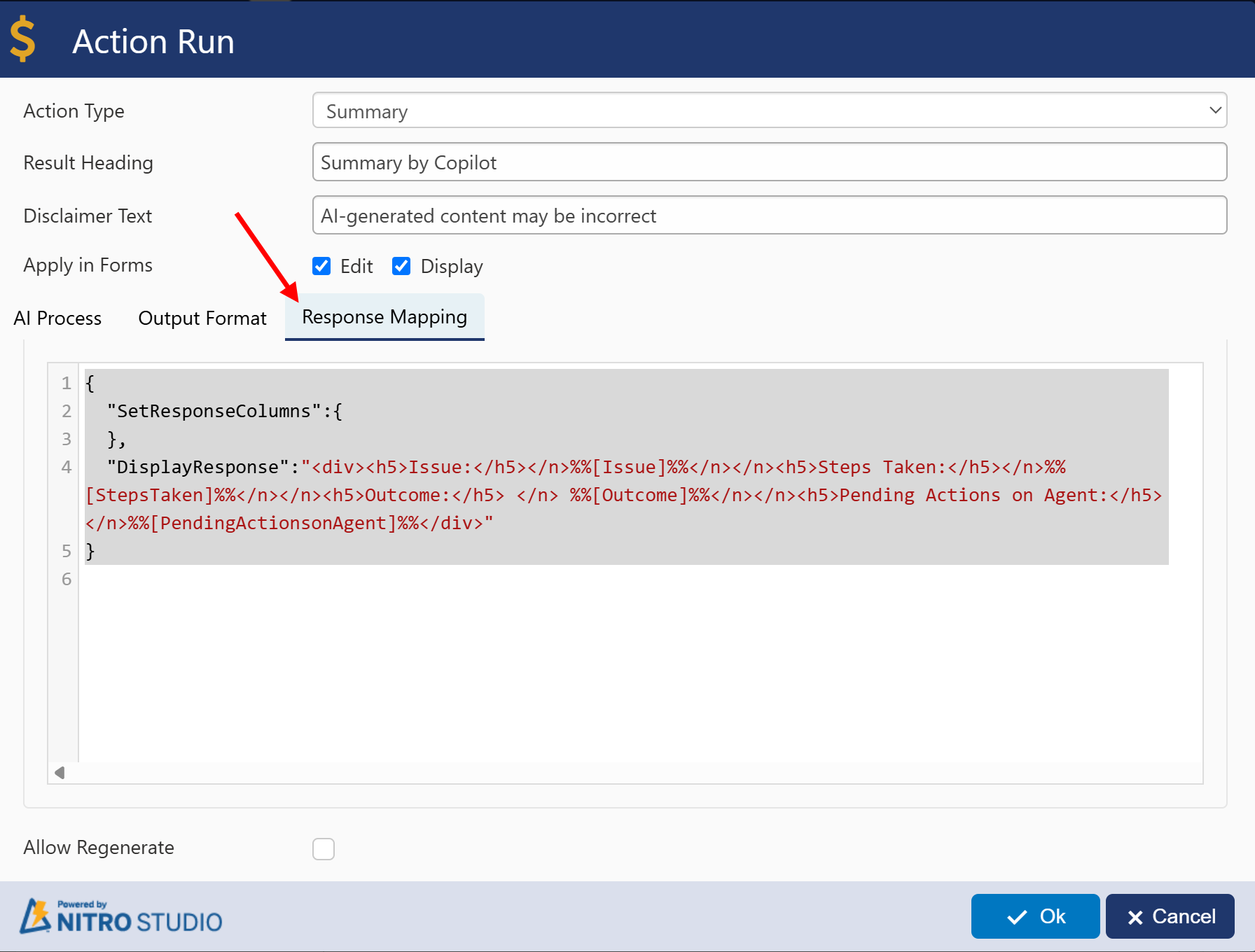
Response Mapping JSON Configuration
{ "SetResponseColumns":{ }, "DisplayResponse":"<div><h5>Issue:</h5></n>%%[Issue]%%</n></n><h5>Steps Taken:</h5></n>%%[StepsTaken]%%</n></n><h5>Outcome:</h5> </n> %%[Outcome]%%</n></n><h5>Pending Actions on Agent:</h5></n>%%[PendingActionsonAgent]%%</div>" } |
Explanation of Response Mapping JSON Settings
This configuration controls how the AI-generated summary is formatted and displayed in the Helpdesk form.
•SetResponseColumns: {}
This section can be used to map parts of the AI response directly to columns in the SharePoint list (e.g., updating ticket fields like status or category).
→ In this configuration, it's left empty, meaning no fields are automatically updated.
•DisplayResponse
This defines how the AI summary is presented in the user interface using simple HTML formatting.
The AI response will be displayed in the following structured format:
Issue:
[Generated Issue Summary]
Steps Taken:
[What the staff has done so far]
Outcome:
[Current result or resolution]
Pending Actions on Agent:
[What the agent still needs to do]
Each placeholder like %%[Issue]%%, %%[StepsTaken]%%, etc., is dynamically replaced by the AI-generated content for that specific section.
Purpose:
This configuration ensures that the AI summary is cleanly formatted and easy to read, making it convenient for support staff to review and act on the summarized details.