To enable AI prioritization, configure the following settings in the ‘AI Settings’ column in the Configurations list:
Go to Application Administration à General Configurations tab à Click ‘General Configurations’ tile à ‘AI Settings’ Tab in Configurations formà Specify below JSON settings in the ‘AI Settings’ column.
This JSON tells the system how to use AI for priority analysis
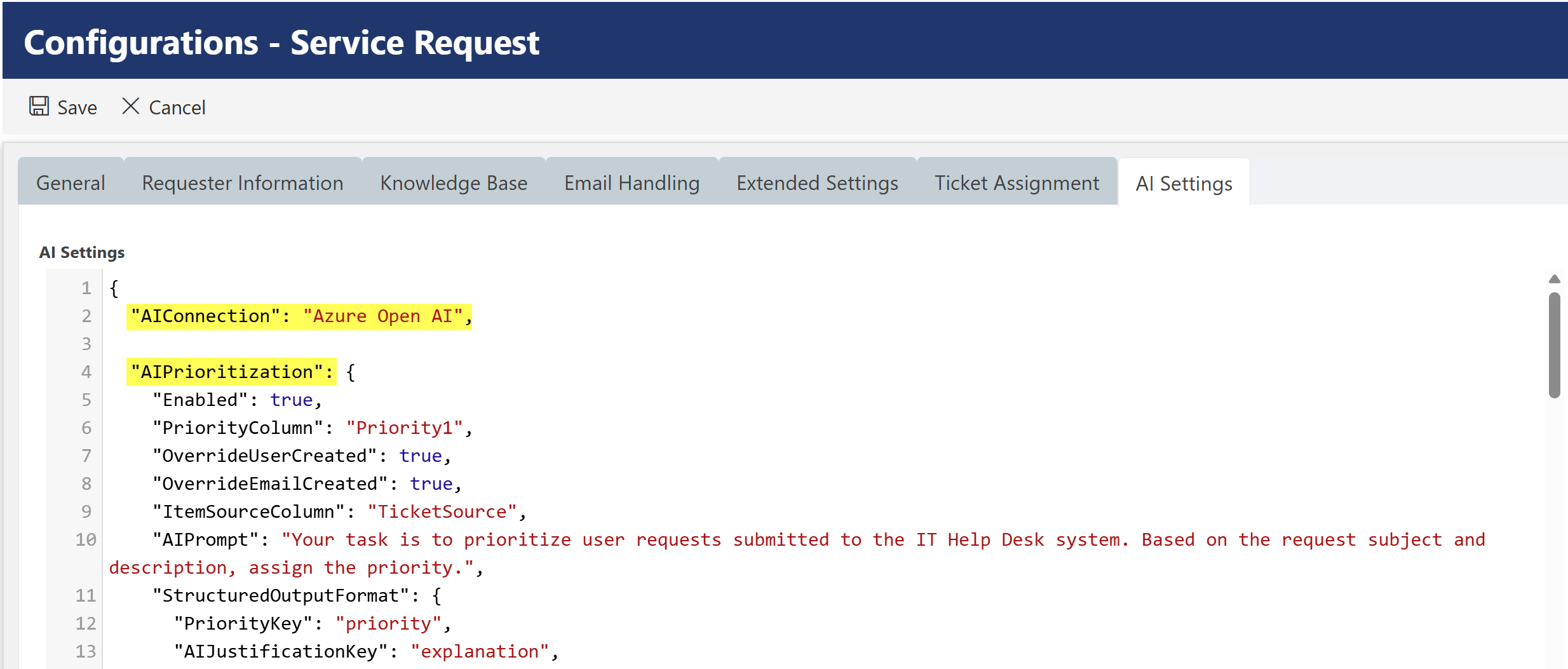
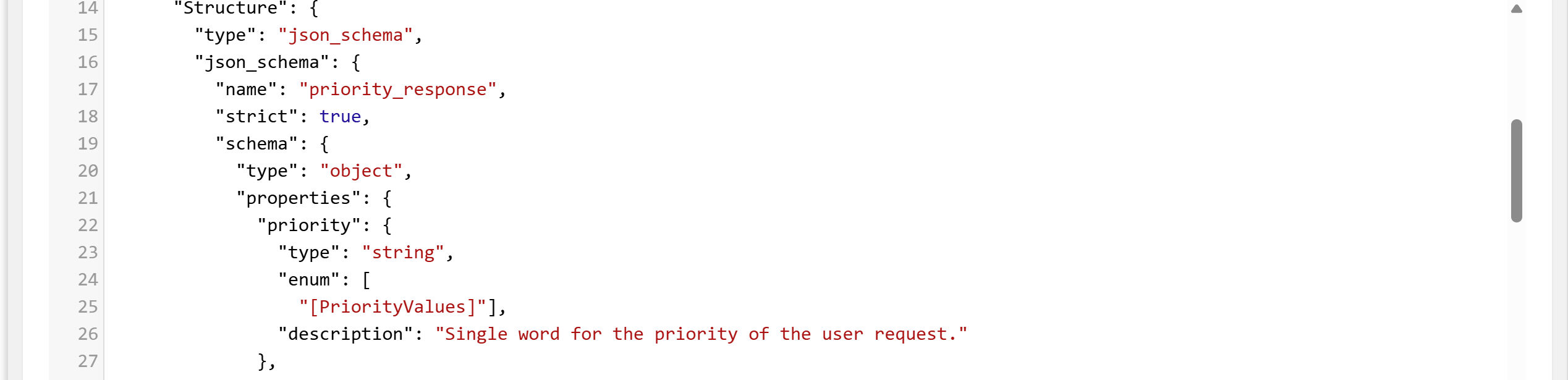
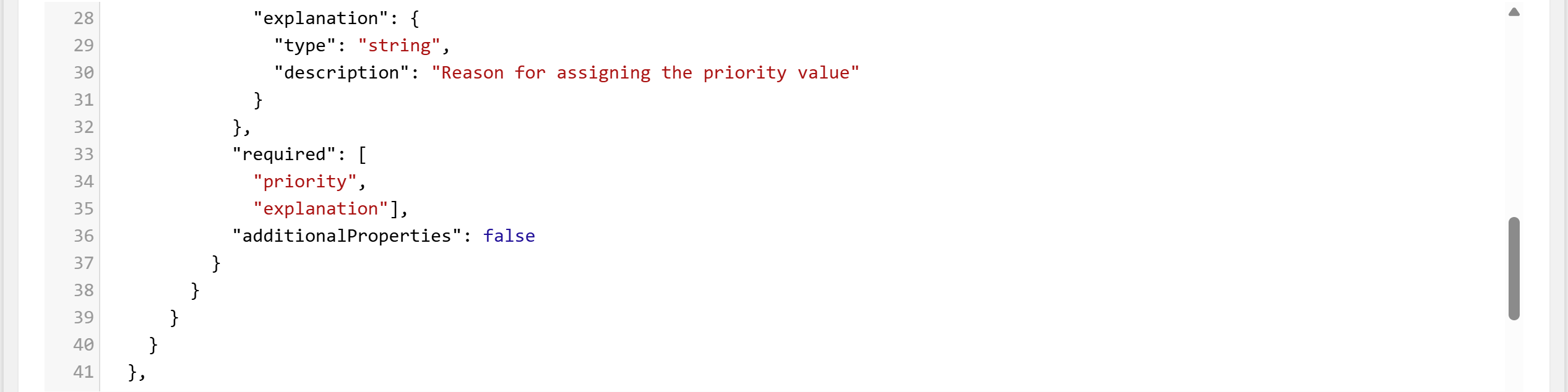
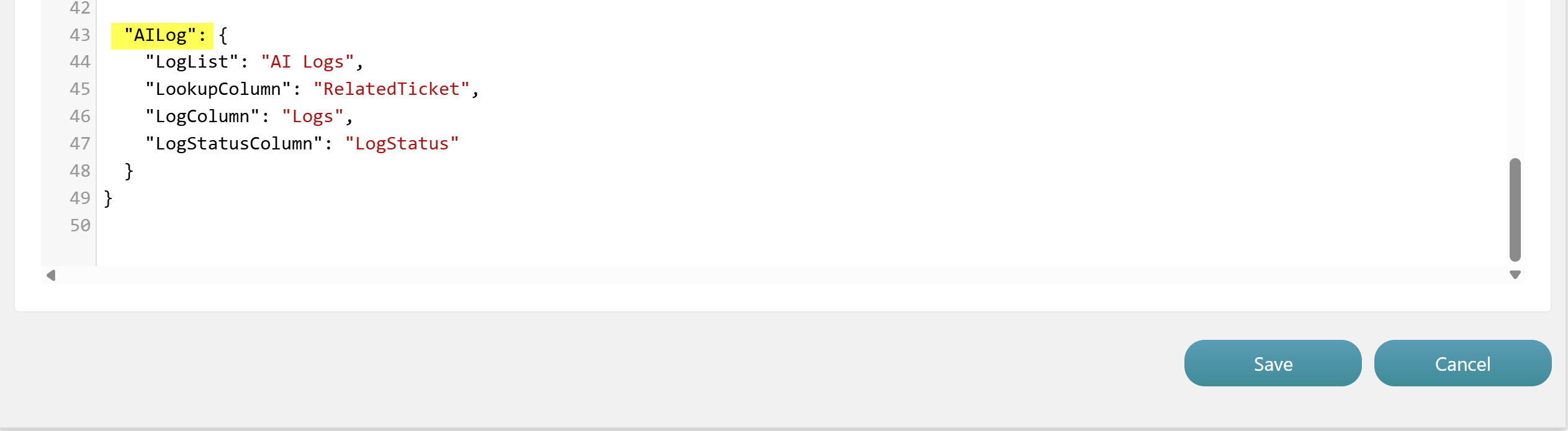
Enter below JSON in ‘AI Settings’ column
{ "AIConnection": "Azure Open AI", "AIPrioritization": { "Enabled": true, "PriorityColumn": "Priority1", "OverrideUserCreated": true, "OverrideEmailCreated": true, "ItemSourceColumn": "TicketSource", "AIPrompt": "Your task is to prioritize user requests submitted to the IT Help Desk system. Based on the request subject and description, assign the priority.", "StructuredOutputFormat": { "PriorityKey": "priority", "AIJustificationKey": "explanation", "Structure": { "type": "json_schema", "json_schema": { "name": "priority_response", "strict": true, "schema": { "type": "object", "properties": { "priority": { "type": "string", "enum": [ "[PriorityValues]" ], "description": "Single word for the priority of the user request." }, "explanation": { "type": "string", "description": "Reason for assigning the priority value" } }, "required": [ "priority", "explanation" ], "additionalProperties": false } } } } }, "AILog": { "LogList": "AI Logs", "LookupColumn": "RelatedTicket", "LogColumn": "Logs", "LogStatusColumn": "LogStatus" } } |
Columns used in above configuration
•AIConnection: Specifies the AI service (in this case, Azure Open AI) used for prioritization.
To create azure services, refer this article: https://www.crowcanyon.help/article/747/
To configure AI connection settings in NITRO Site Settings, go to site settings àCrow Canyon NITRO Site Settings à AI Connection Settings à New AI Connection
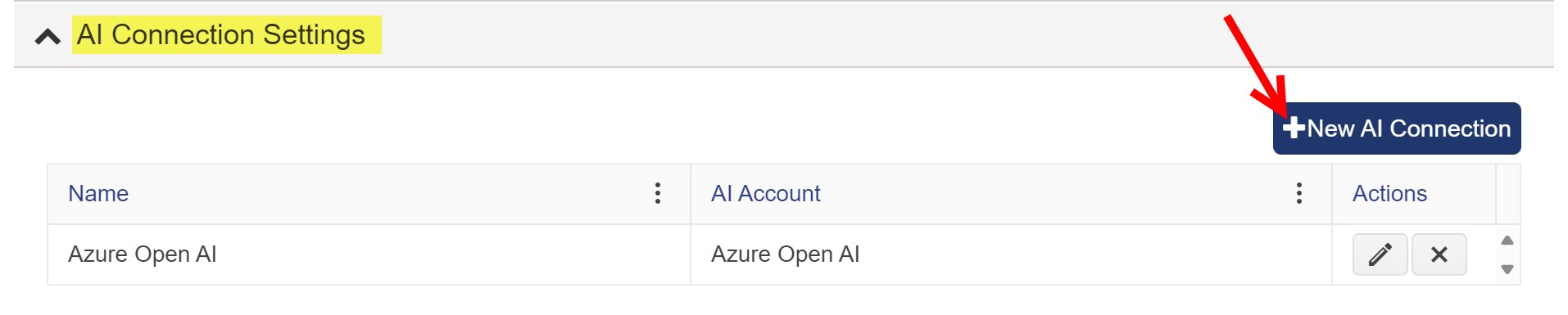
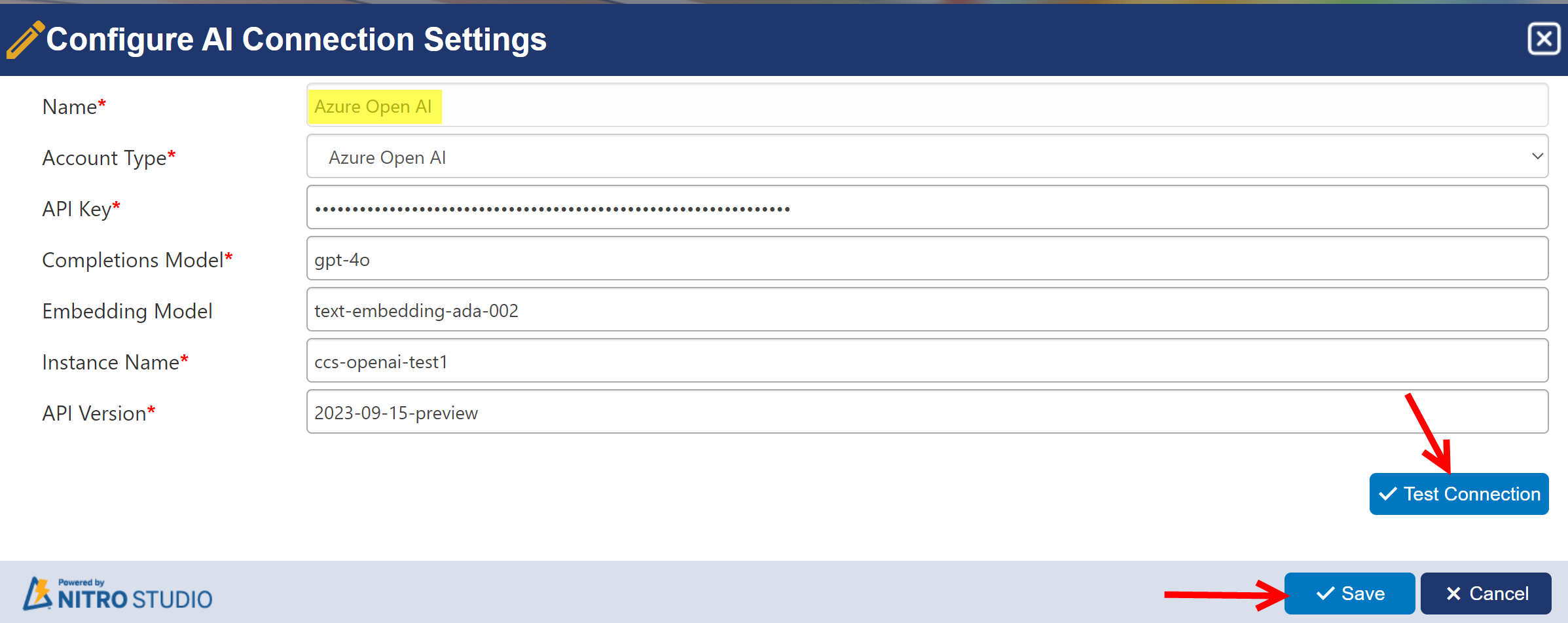
"AIPrioritization" (Main AI priority configuration)
This section defines how the AI should assign priority to tickets.
•"Enabled": true
If set to true, Enables the AI-based prioritization feature.
If set to false, the system won’t attempt to assign priority using AI.
•"PriorityColumn": "Priority1"
The column in the Tickets list where the AI prioritization value will be stored. In above configuration ‘Priority1’ is the internal name of column.
•"OverrideUserCreated": true
If set to true, the system will automatically replace manually assigned priorities with AI-determined priorities when a ticket is created through portal.
•"OverrideEmailCreated": true
If set to true, the system will automatically replace manually assigned priorities with AI-determined priorities when a ticket is created through email.
•"ItemSourceColumn": "TicketSource"
Specifies the column used to track how the ticket was created (e.g., Portal, Email).
•"AIPrompt"
▪This is the instruction given to the AI model.
▪The prompt explains what the AI is supposed to do — review the subject and description of the request and assign a priority accordingly.
Example:
“Your task is to prioritize user requests submitted to the IT Help Desk system…”
StructuredOutputFormat:
This section tells the AI how to give back its answer in a clear and fixed format
so that the system can easily understand and use it.
Fields inside StructuredOutputFormat:
•"PriorityKey": "priority"
The JSON key where the AI's result for priority should be stored.
•"AIJustificationKey": "explanation"
The JSON key where the AI should include its reasoning for the assigned priority.
•"Structure":
Defines the schema (structure) for AI output using a JSON Schema standard.
Inside this schema:
opriority (string): AI-selected priority value.
▪Values must come from [PriorityValues] (you need to define this array, e.g., ["High", "Normal", "Low"])
oexplanation (string): Justification by the AI based on request details.
AILog Section
This part handles logging AI actions, helpful for tracking and debugging.
•LogList: "AI Logs"`
The SharePoint list where AI logs will be saved.
•LookupColumn: "RelatedTicket"`
Links the log entry to the specific Helpdesk ticket.
•LogColumn: "Logs"`
Column where the detailed log (prompt, response, explanation) is stored.
•LogStatusColumn: "LogStatus"`
Used to mark whether the log entry is successful, failed, or pending.