Add above created columns to the NITRO forms.
Configurations list
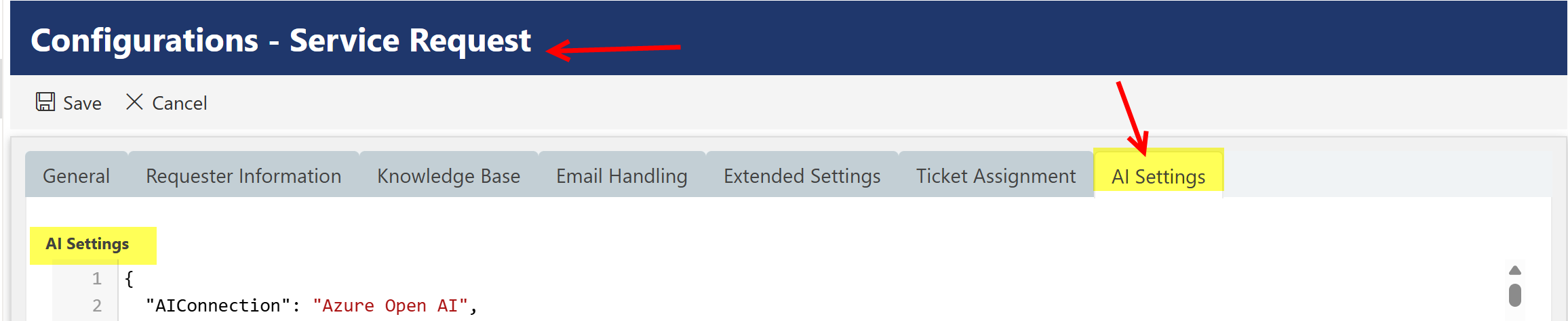
Create a new tab ‘AI Settings’ and add ‘AI Settings’ column to this tab
Go to the ‘Configurations’ list à List Settings àCrow Canyon NITRO Forms àCreate new tab ‘AI Settings’ and add ‘AI Settings’ column in this tab and publish NITRO forms.
Tickets list
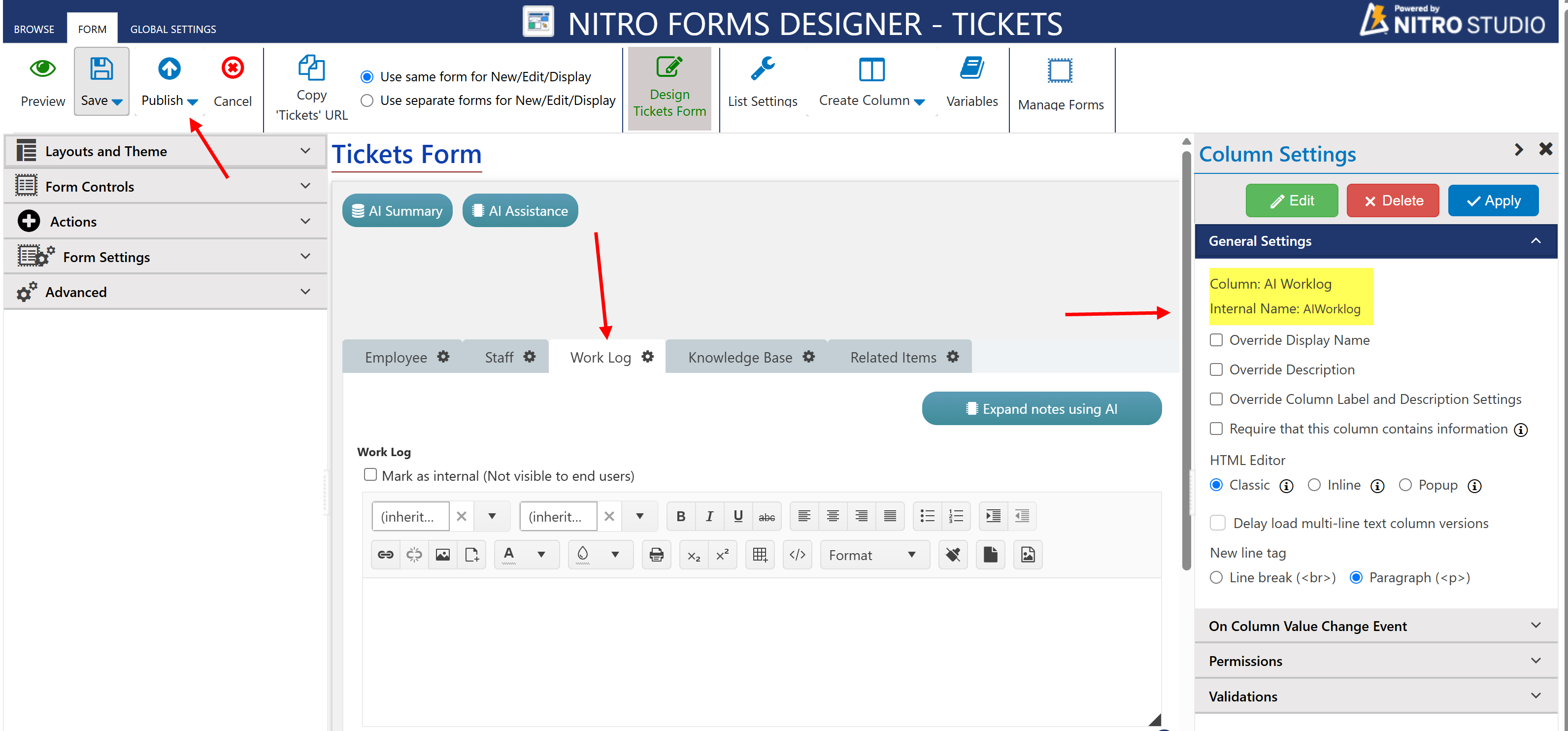
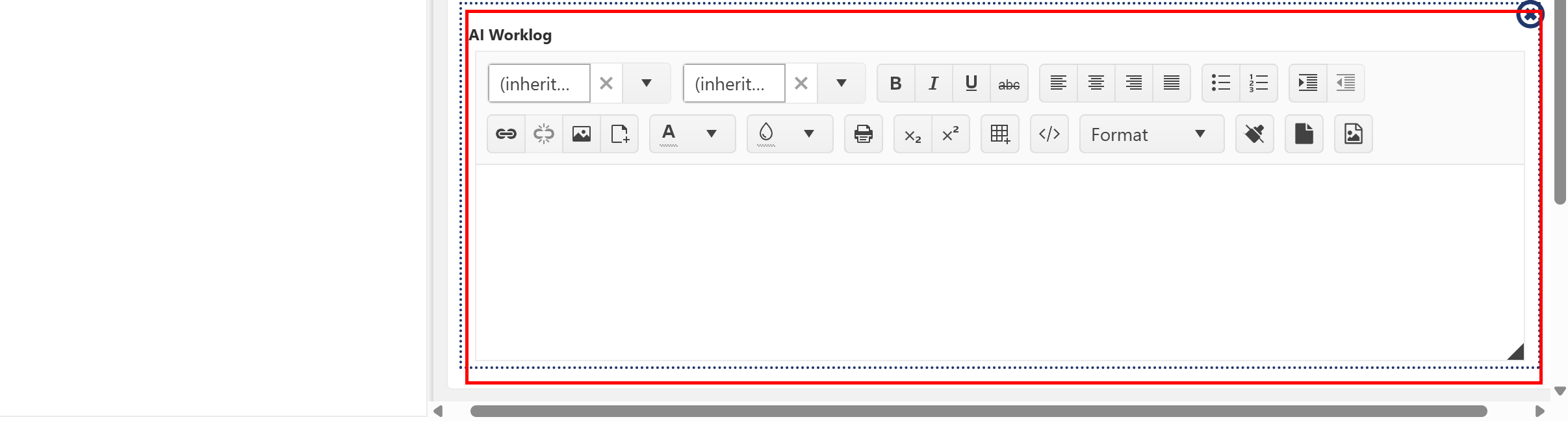
Add ‘AI Worklog’ column to the Work Log tab in Tickets form
Go to the ‘Tickets’ list à List Settings àCrow Canyon NITRO Forms à add ‘AI Worklog’ column in ‘Work Log’ tab and publish the NITRO form.
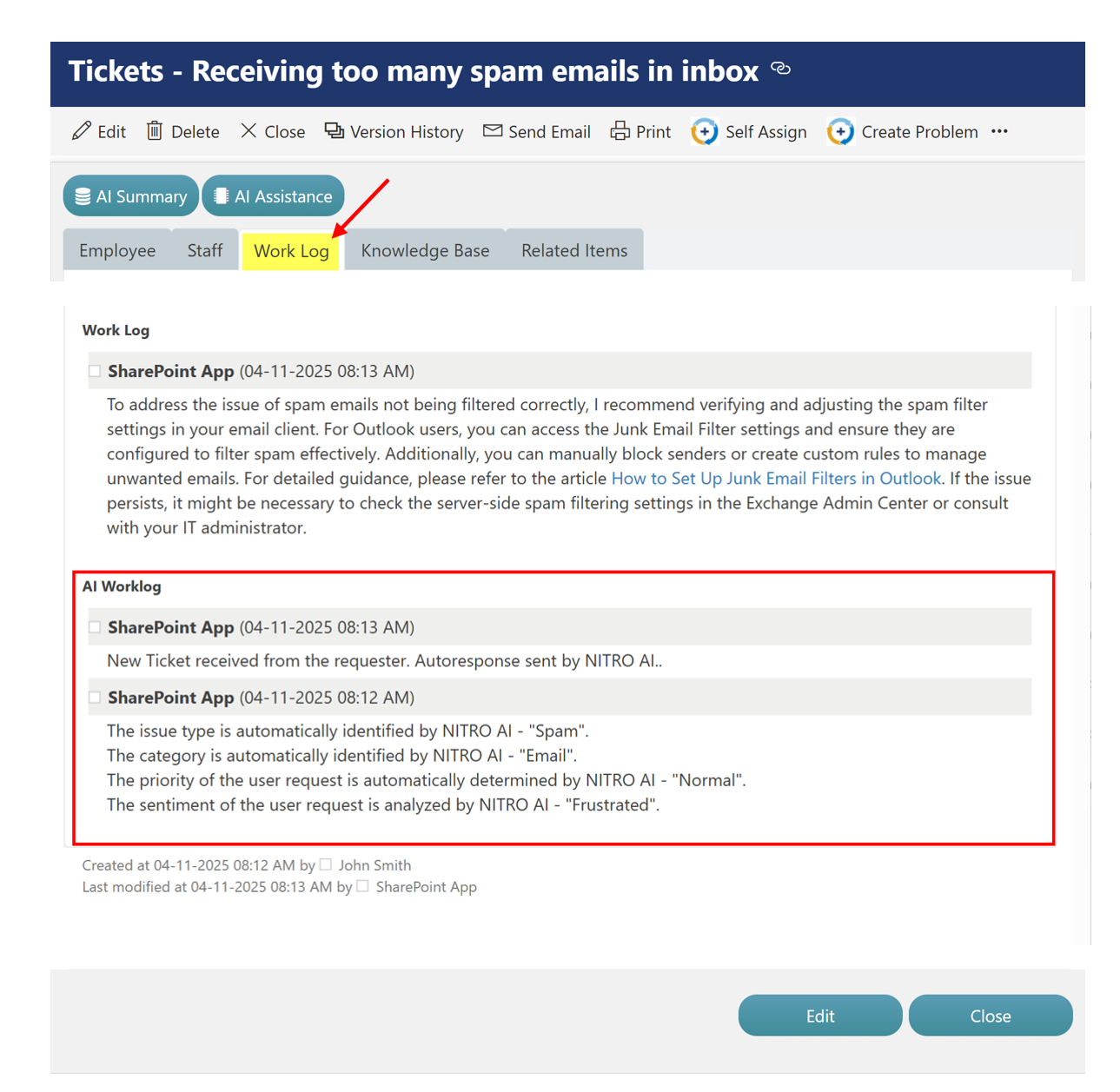
Purpose of AI Worklog Column:
•Logs AI Actions Taken on the Ticket
Shows what actions were performed by the AI—such as auto-response sent, category or issue type assigned, sentiment detected, etc.
•Summarizes AI Analysis
Includes important AI-determined details like:
oIdentified Issue Type
oIdentified Category
oDetected Priority
oSentiment of the user’s message
•Adds Transparency to AI Decisions
Provides visibility to staff on how the AI responded and what it understood from the user’s request.
• Helps with Ticket Review
Makes it easy for staff to quickly check how the ticket was auto-processed, especially useful when reviewing or reassigning.
•Keeps AI-related Notes Separate
Stores AI-generated responses separately from manual updates to keep ticket history clear and organized