How to Access the AI Assistance Button
1.Go to the Tickets Form in the NITRO Helpdesk configuration.
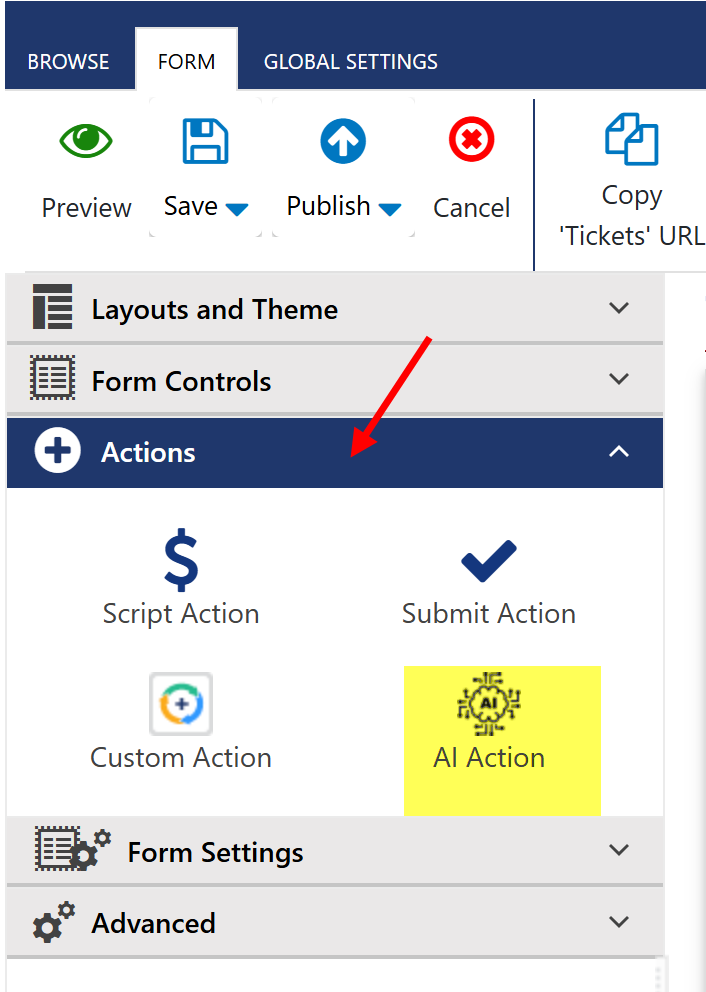
2.Expand Actions.
3.Drag and Drop AI Action button and configure button settings
Navigate to Helpdesk site -> Administration -> Configure Lists -> Tickets -> NITRO Form in Tickets list ribbon -> Expand Actions -> drag and drop AI Action button on form and configure button settings for AI Assistance
Button Settings
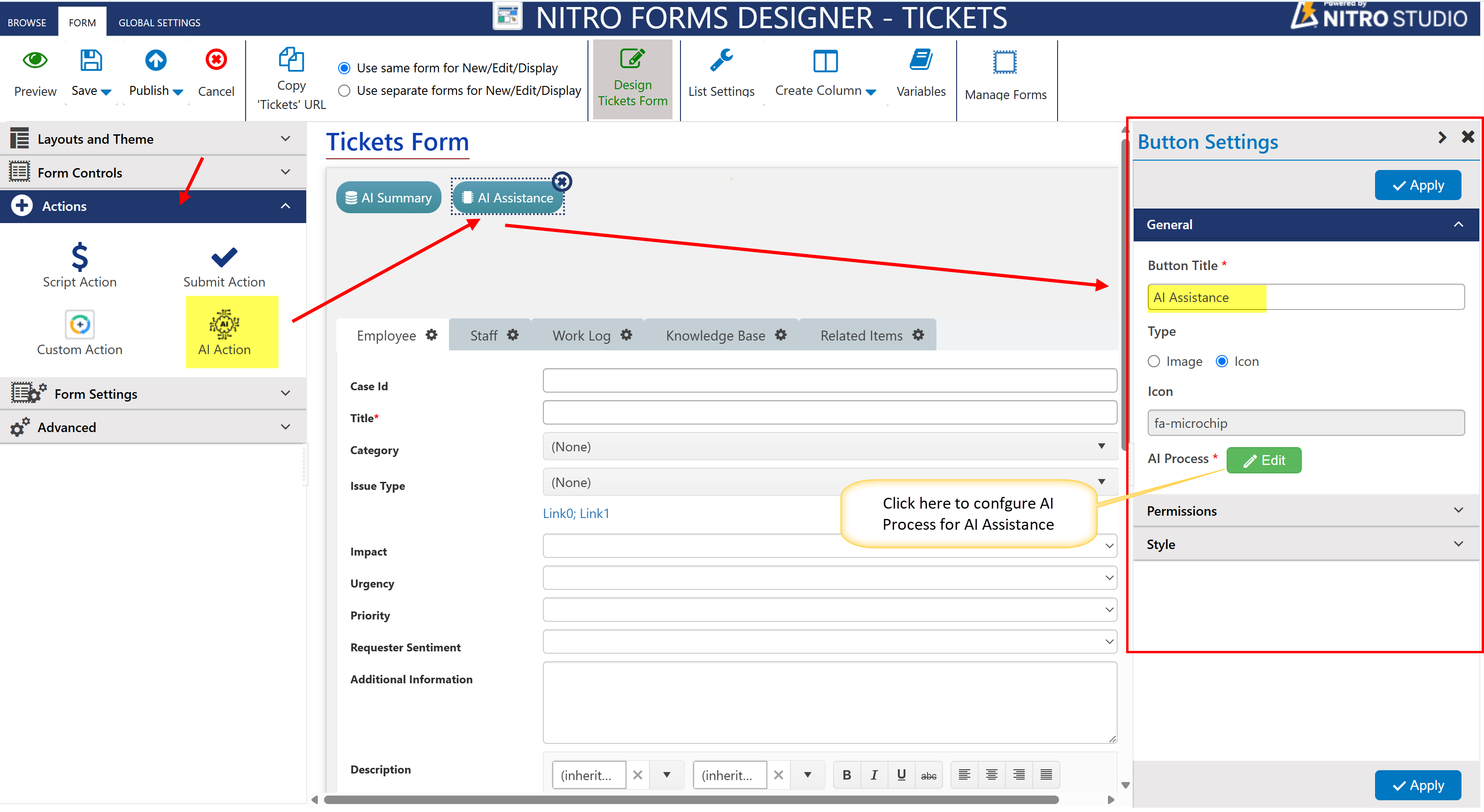
The Button Settings panel in the above image is used to configure the "AI Assistance" button on the Tickets Form in NITRO Forms Designer.
•Button Title: Sets the label text displayed on the button (e.g., "AI Assistance").
•Type: Chooses between displaying an image or an icon on the button.
•Icon: Defines the Font Awesome icon (e.g., fa-microchip) shown on the button.
•AI Process: Links the button to a configured AI process that runs on click.
•Permissions: Controls who can see or use the button based on conditions (collapsed by default).
•Style: Allows customization of the button’s appearance like color or size (collapsed by default).
•Apply: Saves and applies all the button settings to the form.
Click ‘Edit’ button in AI Process to configure settings for AI Summery. A window will pop up, enter JSON for ‘AI Process’, ‘Output Format’, and ‘Response Mapping’.
AI Assistance Action Settings
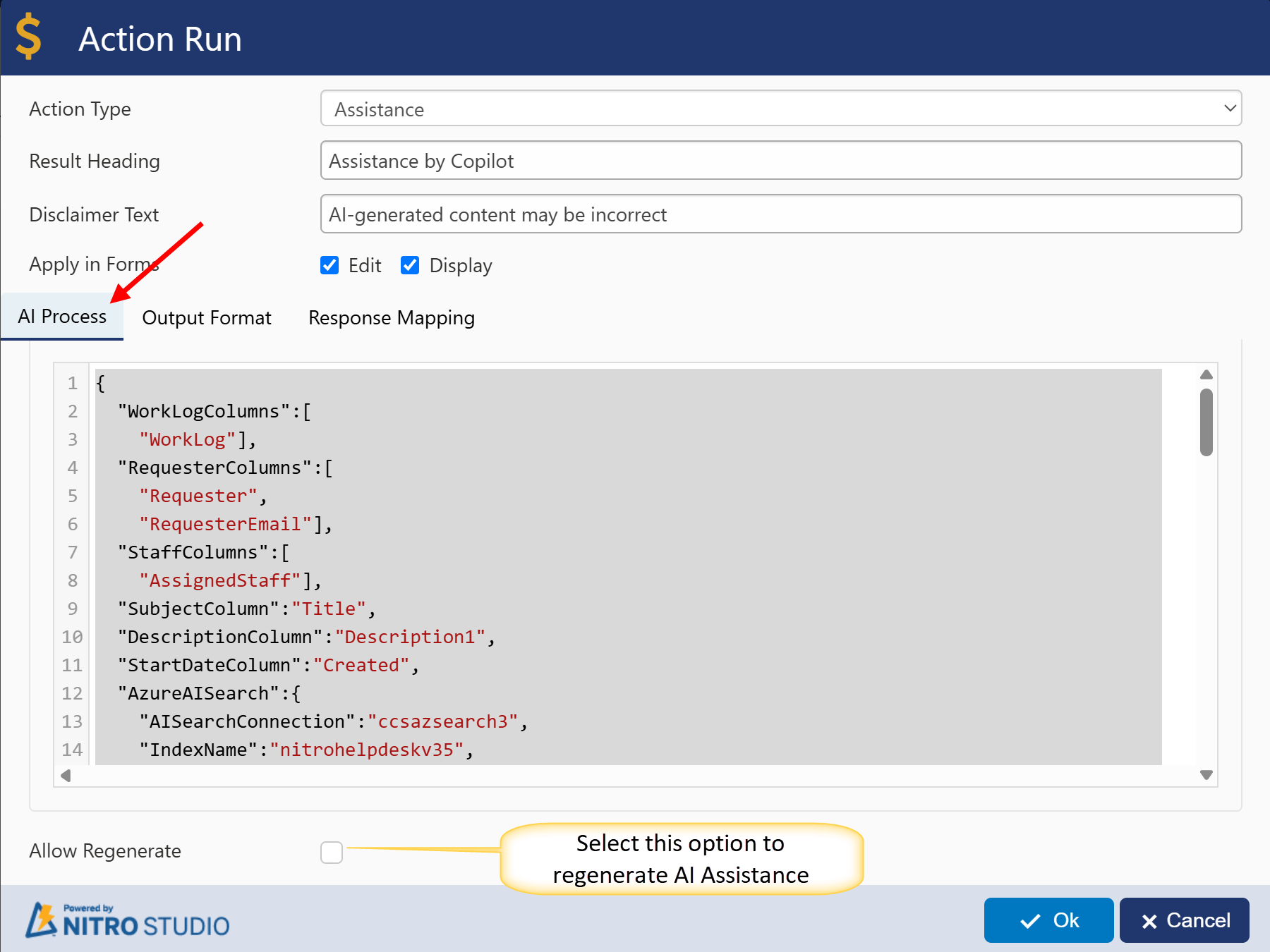
•Action Type: Set to Assistance to generate an AI-based response.
•Result Heading: Displays as AI Assistance Response above the generated content.
•Disclaimer Text: Shows the message AI-generated content may be incorrect below the response.
Apply in Forms
•Edit Form: Enabled – AI response is shown in edit mode.
•Display Form: Enabled – AI response is shown in display mode.
Regenerate Button Settings
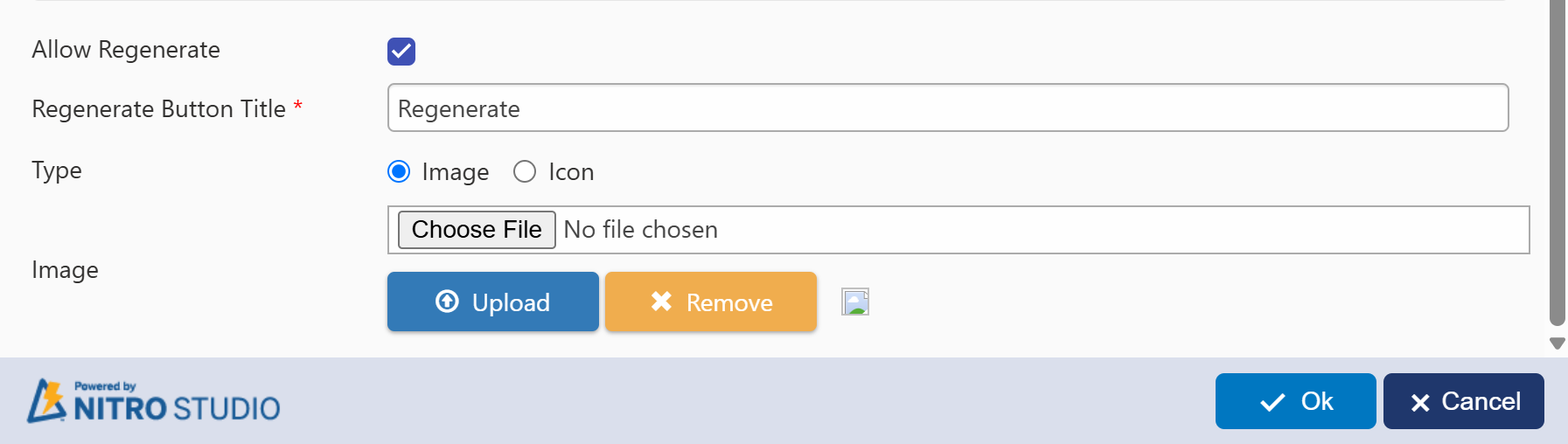
•Allow Regenerate: Disabled by default; when enabled, displays a Regenerate button.
•Regenerate Button Title: Lets you set a custom label for the regenerate button.
•Type: Choose whether to display an Image or an Icon.
•Upload Image: Optionally upload a custom image to use as the regenerate button.
Regenerate Behavior
•When Enabled:
Staff can click the Regenerate button to produce a new AI response using the latest ticket information.
AI Process JSON Configuration
{ "WorkLogColumns":[ "WorkLog"], "RequesterColumns":[ "Requester", "RequesterEmail"], "StaffColumns":[ "AssignedStaff"], "SubjectColumn":"Title", "DescriptionColumn":"Description1", "StartDateColumn":"Created", "AzureAISearch":{ "AISearchConnection":"ccsazsearch3", "IndexName":"nitrohelpdeskv35", "Content":{ "LatestRequesterMessageOnly":false, "IncludeStaff":true, "IncludeOther":true } }, "Keypharses":{ "Enabled":true, "AIConnection":"Azure Open AI", "AIPrompt":"You are an AI assistant that helps to extract keywords on user requests submitted to the IT Help Desk system. These keywords will be used to search help articles for user request. Given below is full interaction history between user and the helpdesk agent in JSON format. Give priority to keywords in latest user message if it has details related to issue faced by user. If latest user message is not related to original subject and description then do not use subject and description to extract keywords, only use the latest user message.Do not include common English words. Important! put each keyword in separate line.", "Tokens":{ "Output":1000, "Input":5000 }, "UserMessages":[ { "Message":"Interaction History JSON: %%[InteractionHistoryJSON]%%", "UseFromItem":true }] }, "Response":{ "AIConnection":"Azure Open AI", "AIPrompt":"Your task is to generate a response to solve user issues submitted to the IT Help Desk system. Given below is full interaction history between user and the helpdesk agent in JSON format. Following that there are help articles related to user request. The response should be generated based on the latest user message, but it must consider the context of the entire interaction, including the timeline of messages exchanged. However, sometimes users send new unrelated issue in the same Ticket. If the latest user message is not related to the interaction history and the original subject and description then do not use the interaction history, only use the latest user message and the help articles to generate the response.Look for alternate solutions in help articles if previously suggested solutions have not worked for the user and include the article links in the response. If provided context is not relevant to the query, then do not make up an answer and instead tell - \"I do not have information to answer this question\".", "Content":{ "LatestRequesterMessageOnly":false, "IncludeStaff":true, "IncludeOther":true }, "Tokens":{ "Output":2000, "Input":10000, "Content":3000 }, "UserMessages":[ { "Message":"Interaction History JSON: %%[InteractionHistoryJSON]%%", "UseFromItem":true }, { "Message":"Help Articles: %%[HelpArticlesData]%%", "UseFromItem":true }, { "Message":"Short response from agent: %%[WorkLog]%%", "UseFromItem":false }] } } |
Explanation of AI Process JSON Settings:
This JSON configuration defines how AI features (like keyword extraction, help article suggestions, and automated response drafting) work within the NITRO Helpdesk form.
Field Mappings – Connecting Ticket Data to AI
These mappings tell the AI which columns in the form to use when analyzing the ticket.
•WorkLogColumns:
→ Lists columns that store staff replies or work logs.
→ Example: "WorkLog" — contains comments written by support agents.
•RequesterColumns:
→ Columns that identify the user who submitted the ticket.
→ Example: "Requester", "RequesterEmail" — helps the AI understand who needs assistance.
•StaffColumns:
→ Contains the name or ID of the staff member assigned to the ticket.
→ Example: "AssignedStaff"
•SubjectColumn:
→ This is the column where the ticket’s subject or title is stored.
→ Example: "Title"
•DescriptionColumn:
→ Holds the initial problem description provided by the requester.
→ Example: "Description1"
•StartDateColumn:
→ Indicates the creation date of the ticket, used to understand timelines.
→ Example: "Created"
Azure AI Search Integration – Help Article Suggestions
This section enables integration with Azure Cognitive Search to fetch relevant help articles or reference content for the AI to use.
•AISearchConnection:
→ Name of the Azure AI Search service configured (e.g., "ccsazsearch3").
•IndexName:
→ The name of the search index where helpdesk content is stored (e.g., "nitrohelpdeskv35").
•Content Options:
oLatestRequesterMessageOnly: false – The AI uses the full ticket history, not just the latest message.
oIncludeStaff: true – Staff comments will be considered in the search.
oIncludeOther: true – Includes internal notes or system-generated messages.
Purpose: Allows the AI to pull relevant knowledge base content that may help in resolving the issue automatically.
Keyphrase Extraction – Identifying Keywords
This section enables the AI to identify key terms from the ticket conversation to summarize or tag the issue.
•Enabled: true – Turns on keyphrase detection.
•AIConnection:
→ Specifies the AI model to use (e.g., "Azure Open AI").
•AIPrompt:
→ Instructions given to the AI to guide keyword extraction (e.g., "You are an AI assistant that helps to extract keywords...").
•Tokens:
→ Controls how much content the AI can process:
oInput: 5000 – Max characters sent to AI.
oOutput: 1000 – Max characters in the AI’s response.
•UserMessages:
→ Custom messages sent to the AI during processing.
oExample: "Interaction History JSON: %%[InteractionHistoryJSON]%%"
→ Uses the full conversation history from the ticket.
Purpose: Useful for tagging, searching, or analyzing tickets based on automatically detected keywords.
AI Response – Drafting Replies to Requesters
This part helps generate a smart, pre-written reply for the support staff based on ticket data and help articles.
•AIConnection:
→ The AI engine used for generating responses (e.g., "Azure Open AI").
•The AI Assistance feature in the NITRO form uses Azure Open AI to analyze ticket content and generate intelligent response suggestions for support staff. This enhances productivity by providing context-aware, ready-to-use replies based on ticket history and related content.
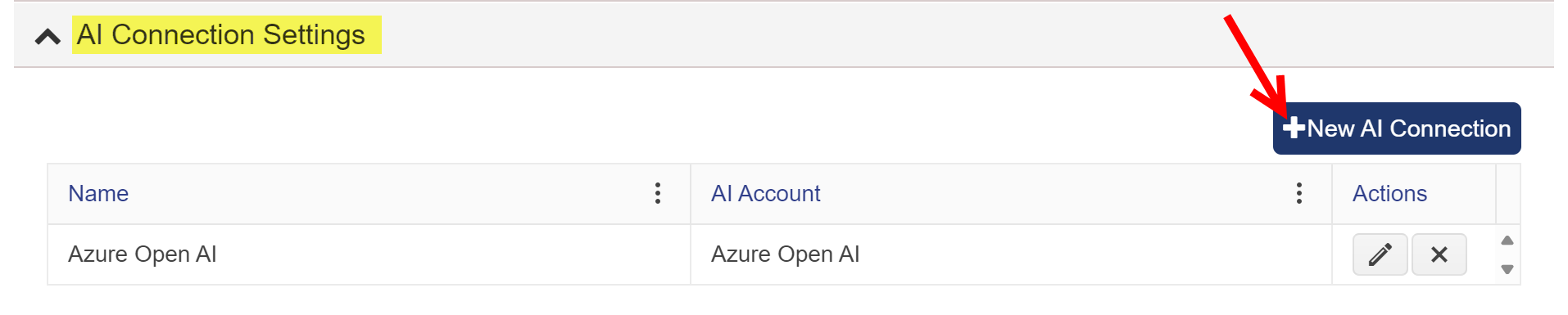
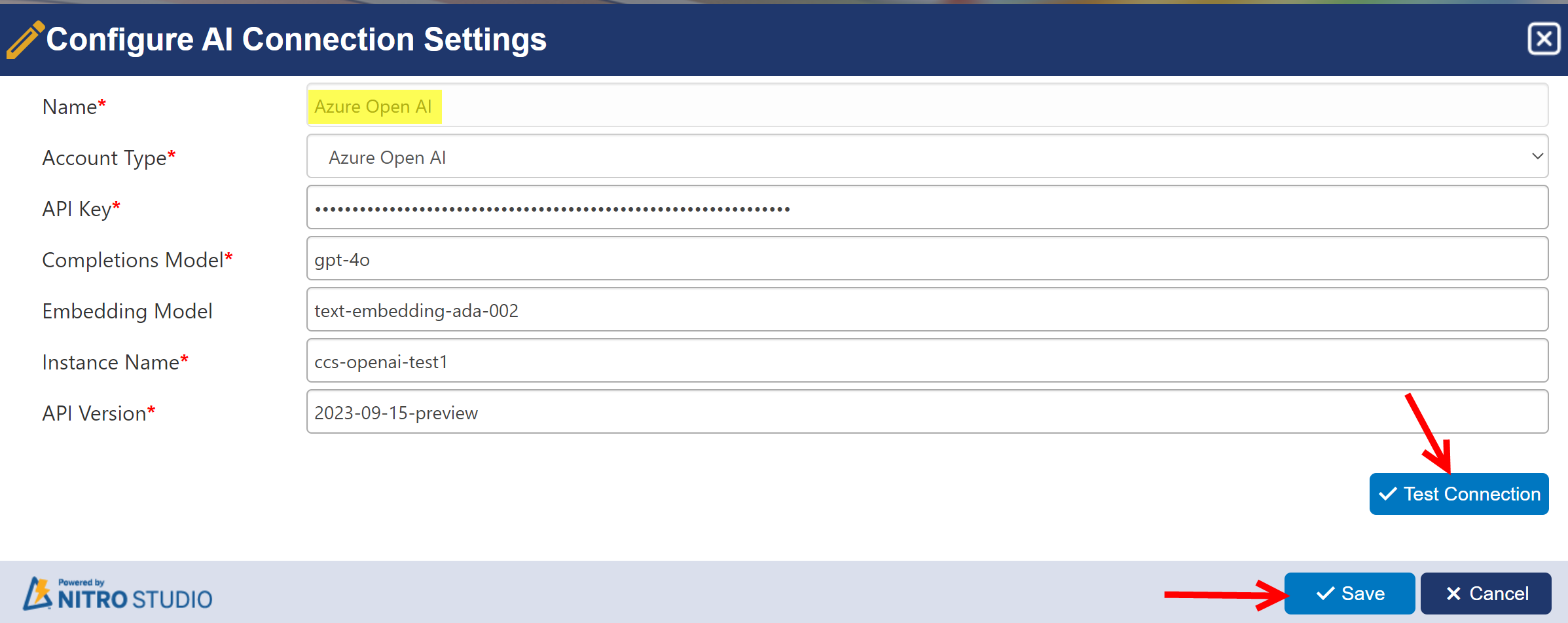
•The AIConnection setting defines the name of the Azure Open AI service configured in Crow Canyon NITRO Site Settings. This connection is required to enable AI-generated assistance within the form.
To create azure services, refer this article: https://www.crowcanyon.help/article/747/
To configure AI connection settings in NITRO Site Settings, go to site settings àCrow Canyon NITRO Site Settings à AI Connection Settings à New AI Connection
•AIPrompt:
→ Instructions that guide the AI in creating useful and helpful responses (e.g., "Your task is to generate a response to solve user issues...").
•Content Options:
oLatestRequesterMessageOnly: false – Includes full history instead of just the latest message.
oIncludeStaff: true – Staff comments are considered.
oIncludeOther: true – Other logs and notes are included as context.
•Tokens:
→ Limits for how much the AI can handle:
oInput: 10000 – Max characters from ticket sent to AI.
oOutput: 2000 – Max characters in the generated response.
oContent: 3000 – Limit for internal processing context.
•UserMessages:
→ Sequence of messages fed into the AI:
oInteraction history (%%[InteractionHistoryJSON]%%) – Complete ticket conversation.
oHelp articles (%%[HelpArticlesData]%%) – Injects related articles for context.
oStaff response draft (%%[WorkLog]%%) – Adds existing agent notes (from outside the current form item).
Purpose: Helps support staff by providing a ready-to-use, AI-generated response that saves time and improves consistency.
Overall Summary
This configuration enables your Helpdesk form to:
•Pull in relevant context (ticket fields, staff replies, and more).
•Use Azure AI to find knowledge articles and extract keywords.
•Automatically draft accurate and helpful responses using AI.
Output Format
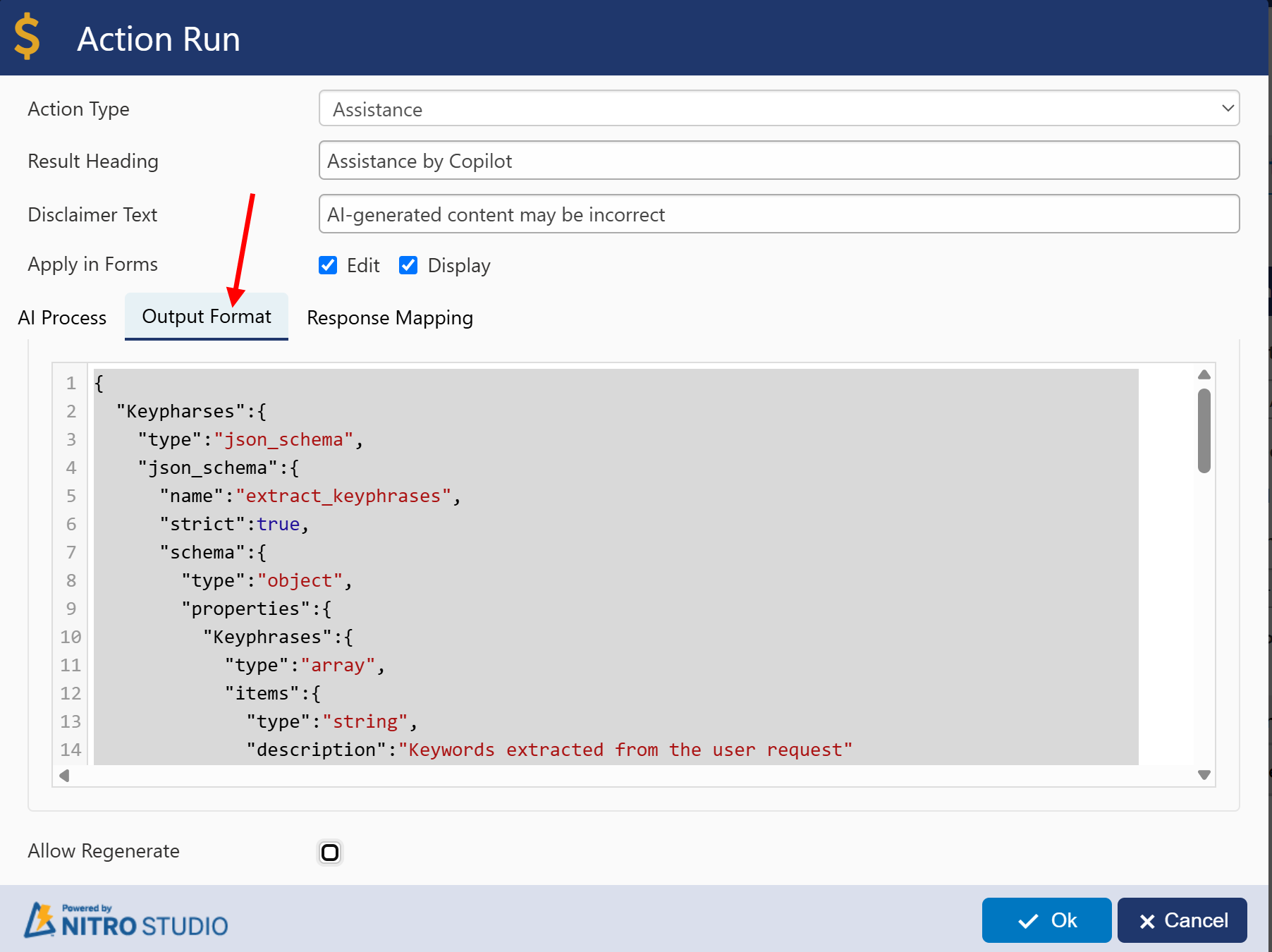
Output Format JSON Configuration
{ "Keypharses":{ "type":"json_schema", "json_schema":{ "name":"extract_keyphrases", "strict":true, "schema":{ "type":"object", "properties":{ "Keyphrases":{ "type":"array", "items":{ "type":"string", "description":"Keywords extracted from the user request" } }, "explanation":{ "type":"string", "description":"Justification for response based on given articles, interaction history and timeline" } }, "required":[ "Keyphrases", "explanation"], "additionalProperties":false } } }, "Response":{ "type":"json_schema", "json_schema":{ "name":"expand_agent_response", "description":"Expand agent response for the ticket", "strict":true, "schema":{ "type":"object", "properties":{ "expanded_response":{ "type":"string", "description":"Expanded agent short response. To be sent to the user and based on the interaction history and the timeline of messages." }, "latest_user_message":{ "type":"string", "description":"Latest user message interpreted from the input json" }, "explanation":{ "type":"string", "description":"How interaction and timeline are used to prepare the expanded response" } }, "required":[ "expanded_response", "latest_user_message", "explanation"], "additionalProperties":false } } } } |
Explanation of Output Format JSON Settings
This configuration defines how the AI will return structured results for two main parts of AI Assistance: Keyphrase Extraction and Agent Response Expansion.
Keyphrases Section
•Purpose: Extracts important keywords or phrases from the ticket conversation.
•Expected Output Fields:
oKeyphrases – A list of keywords (array of strings) relevant to the ticket content.
oexplanation – A brief explanation or context of how these keyphrases relate to the ticket.
This helps agents quickly understand the core topics discussed in the ticket.
Response Section
•Purpose: Enhances or expands a short agent message into a more detailed and professional response using AI.
•Expected Output Fields:
oexpanded_response – The AI-generated detailed response for the customer.
olatest_user_message – The most recent message or concern from the user that the response is addressing.
oexplanation – A description of how or why the AI constructed this response.
This aids agents by providing them with polished and context-aware replies, saving time and improving communication quality.
Common Settings
•strict: true – Enforces that the AI returns only the defined fields. Any extra fields will be ignored or rejected.
•additionalProperties: false – Prevents unwanted or unexpected data from being included in the output.
Purpose:
This configuration ensures that both keyword extraction and AI-generated replies follow a consistent structure, making them easier to parse, display, and act upon within the NITRO Helpdesk interface.
Response Mapping
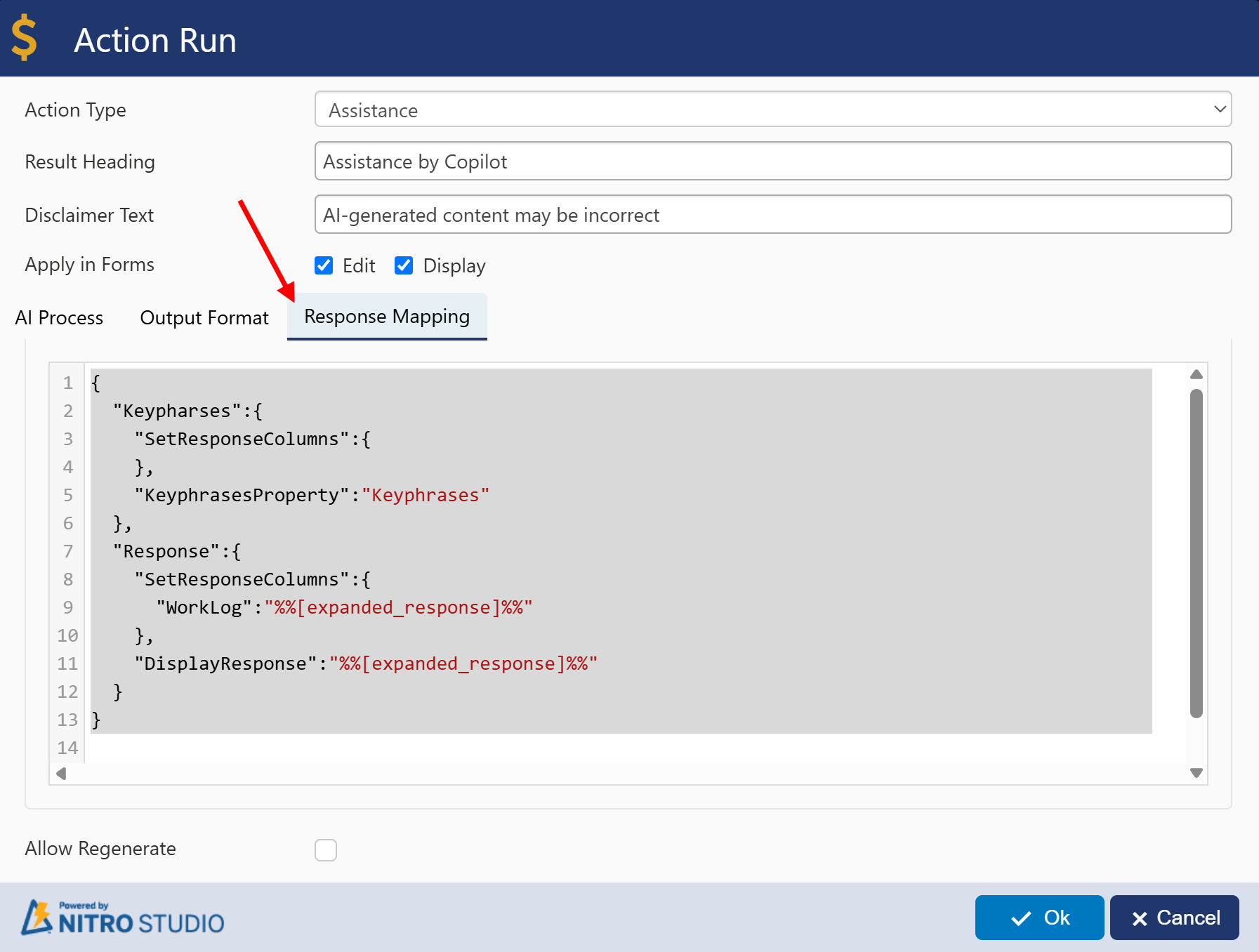
Response Mapping JSON Configuration
{ "Keypharses":{ "SetResponseColumns":{ }, "KeyphrasesProperty":"Keyphrases" }, "Response":{ "SetResponseColumns":{ "WorkLog":"%%[expanded_response]%%" }, "DisplayResponse":"%%[expanded_response]%%" } } |
AI Assistance – Response Mapping Configuration
This configuration defines how the keyphrases and AI-generated responses are handled after the AI processes the ticket.
Keyphrases Section
•SetResponseColumns: {}`
No SharePoint columns are being updated with the keyphrase output – it's used only for display or backend processing.
•KeyphrasesProperty: "Keyphrases" : Maps extracted keywords.
Refers to the property in the AI output JSON that contains the list of extracted keyphrases. This ensures the system knows where to find and retrieve them.
Response Section
•SetResponseColumns: { "WorkLog": "%%[expanded_response]%%" }
The AI-generated expanded response is saved directly to the WorkLog field in the ticket.
•DisplayResponse: "%%[expanded_response]%%"
The same AI response is also displayed in the interface for staff to preview before saving or editing.
Purpose:
This configuration enables seamless integration of AI-generated replies into the Helpdesk workflow—saving responses in logs while making them visible for agent review.