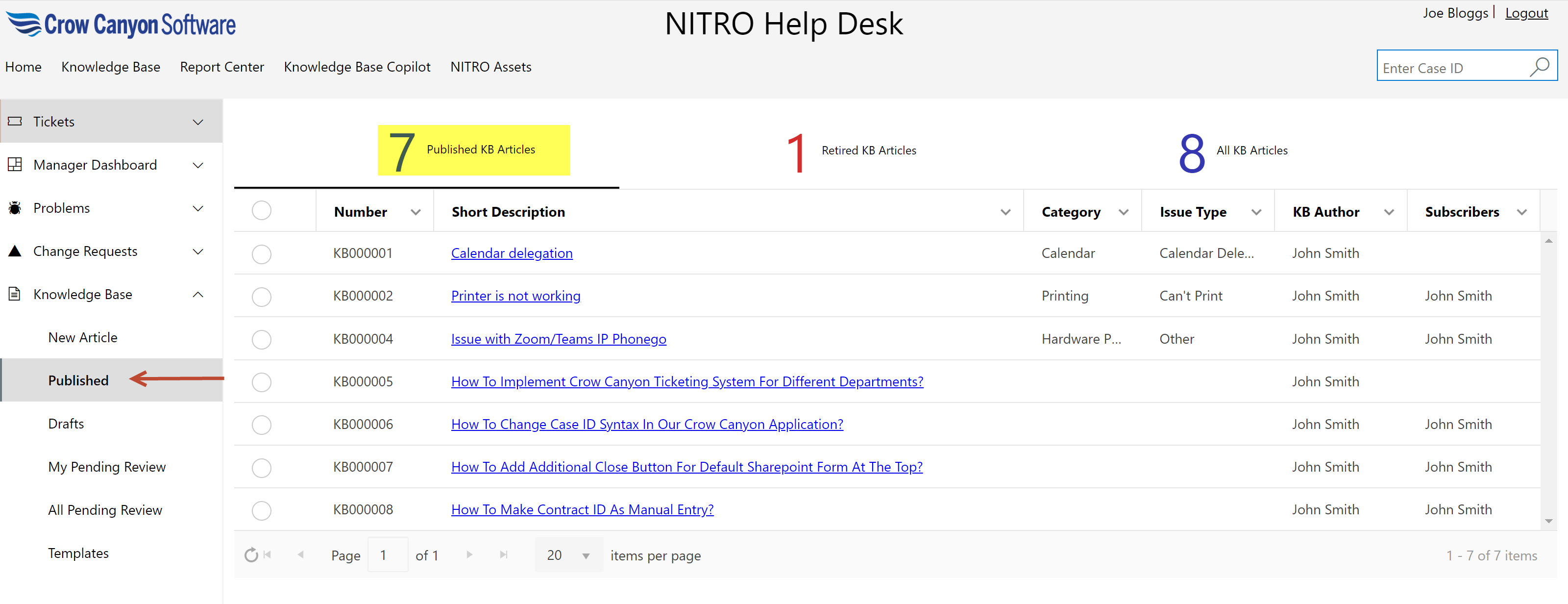
This view will show all published articles as shown below
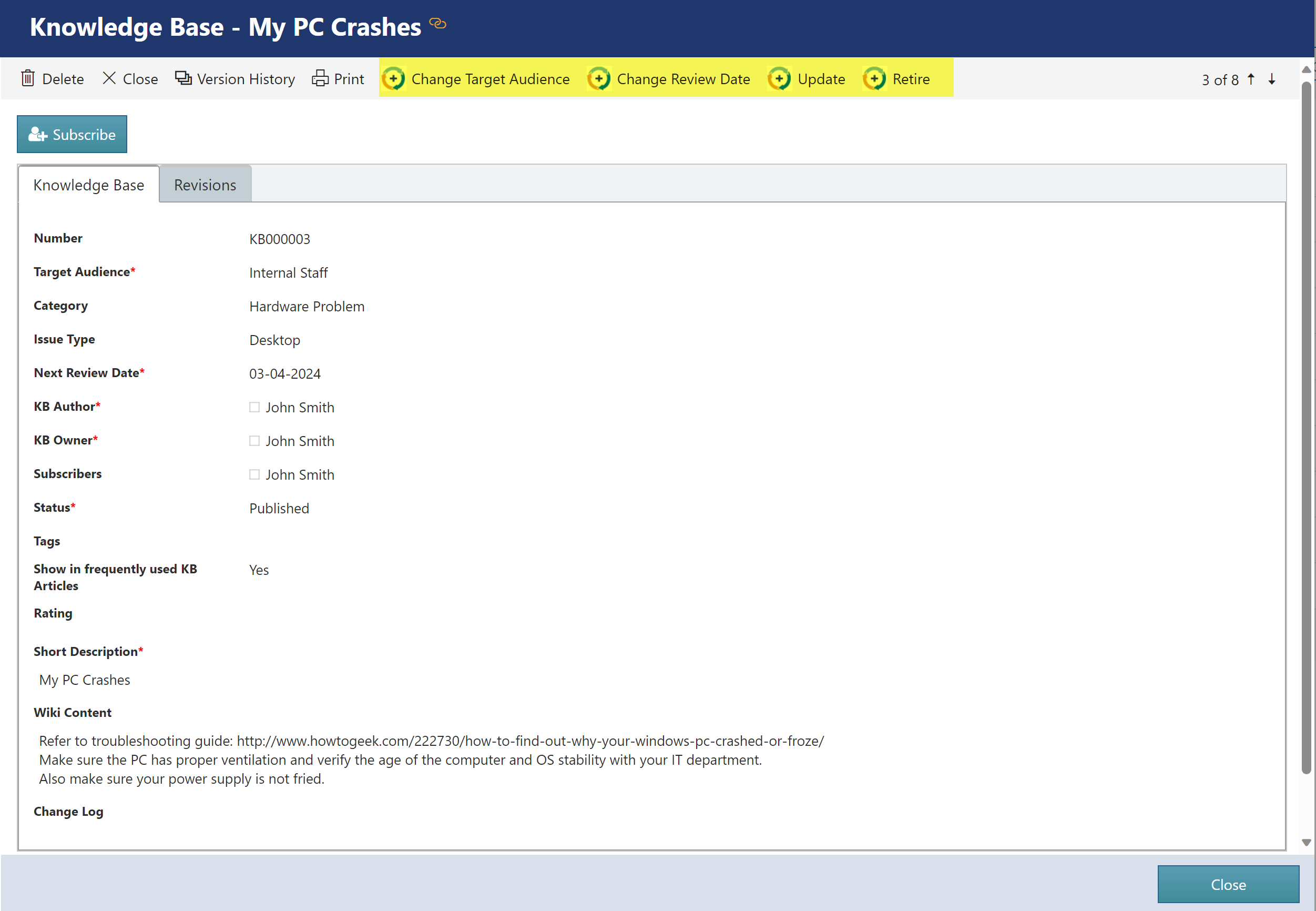
To view custom actions available in published article, open the article.
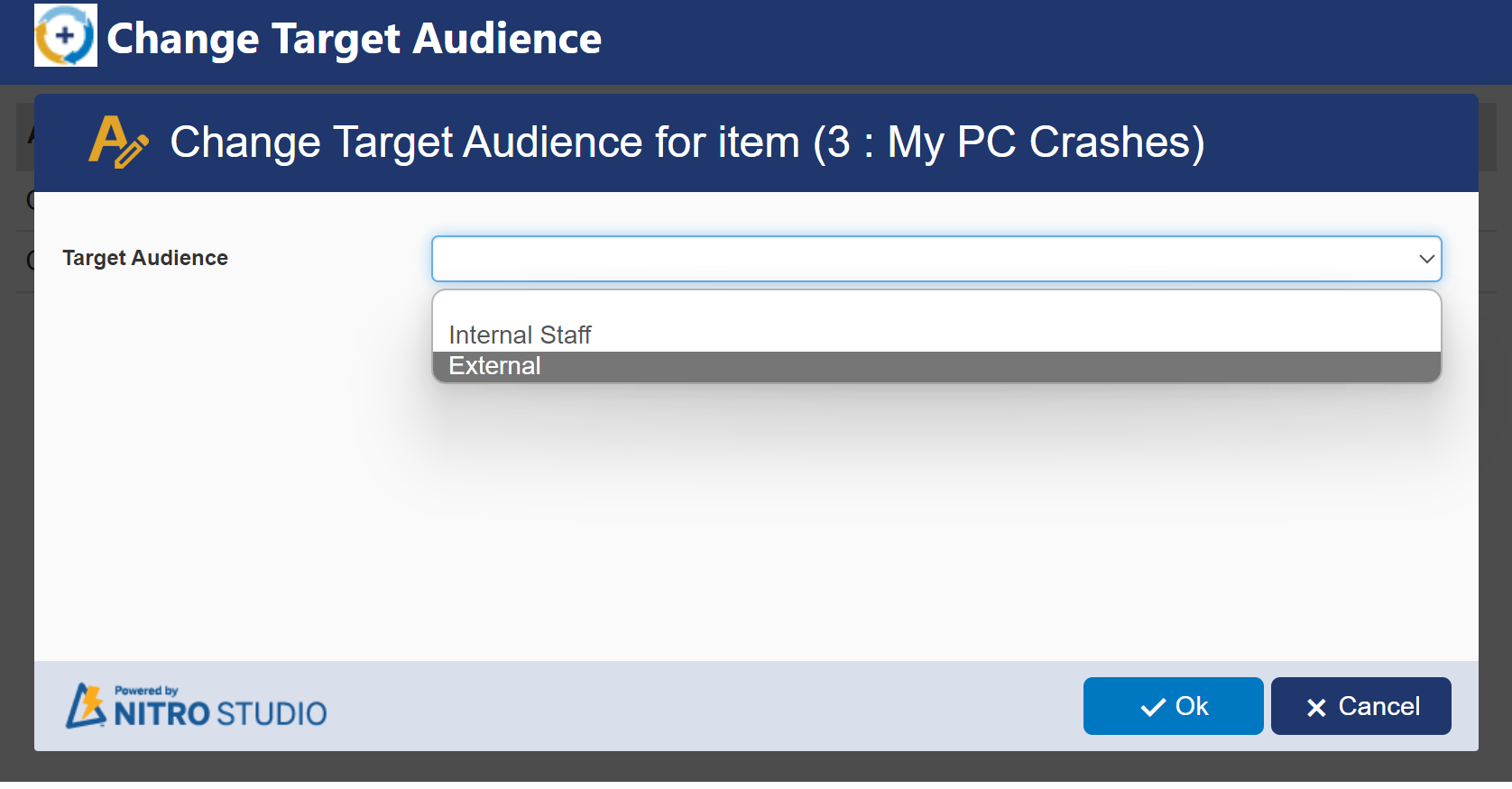
Change Target Audience
Execute this custom action to change target audience as ‘Internal Staff’ or’ External’.
Internal Staff refers to the Help Desk Technicians. External refers to all End Users, including Help Desk Technicians. If the permission is set to Internal Staff, only Help Desk Technicians will see the article. External shows the article for everyone in the company.
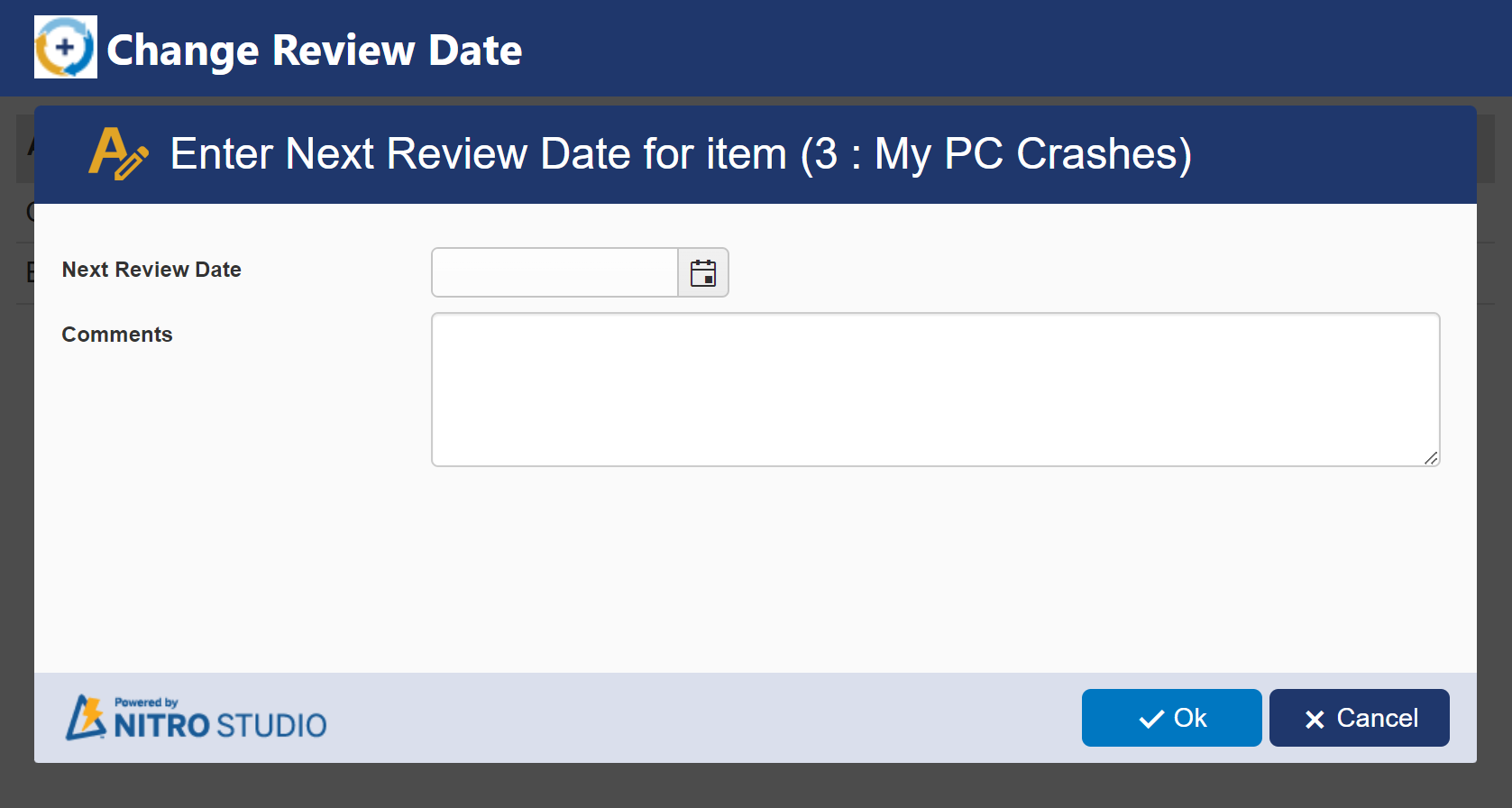
Change Review Date
Execute this custom action to change review date of article. Provide ‘New Review Date’ and ‘Comments’ in the pop up window when the custom action is executed.
Update
Execute this custom action to update the article. When this custom action is executed, a message will be displayed as shown below
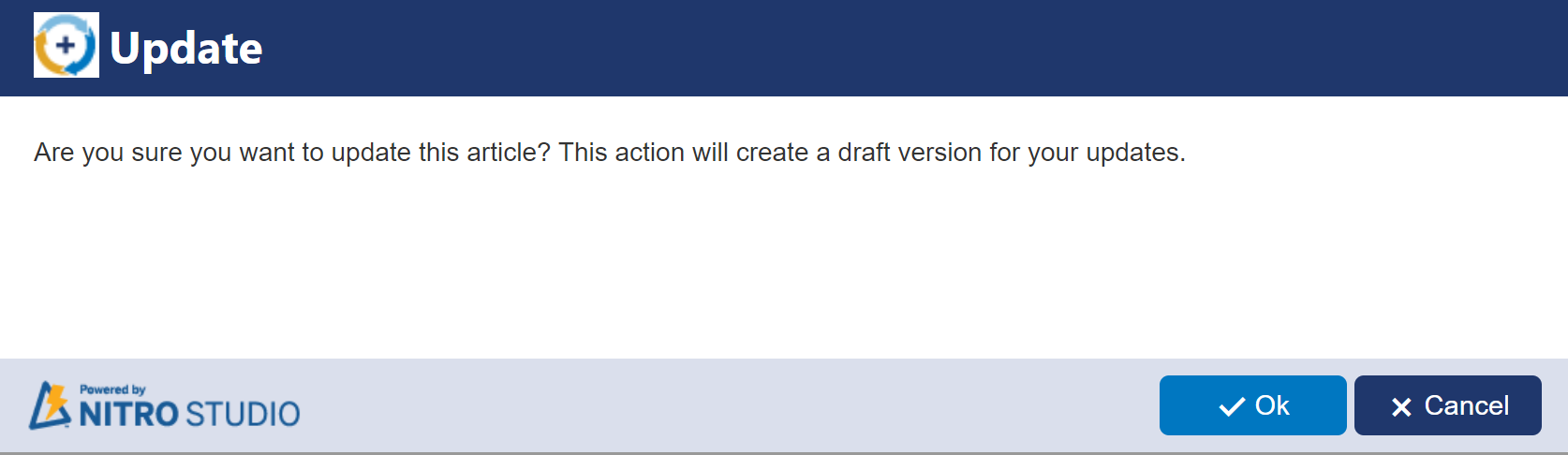
After clinking ‘OK’, edit form of article will open
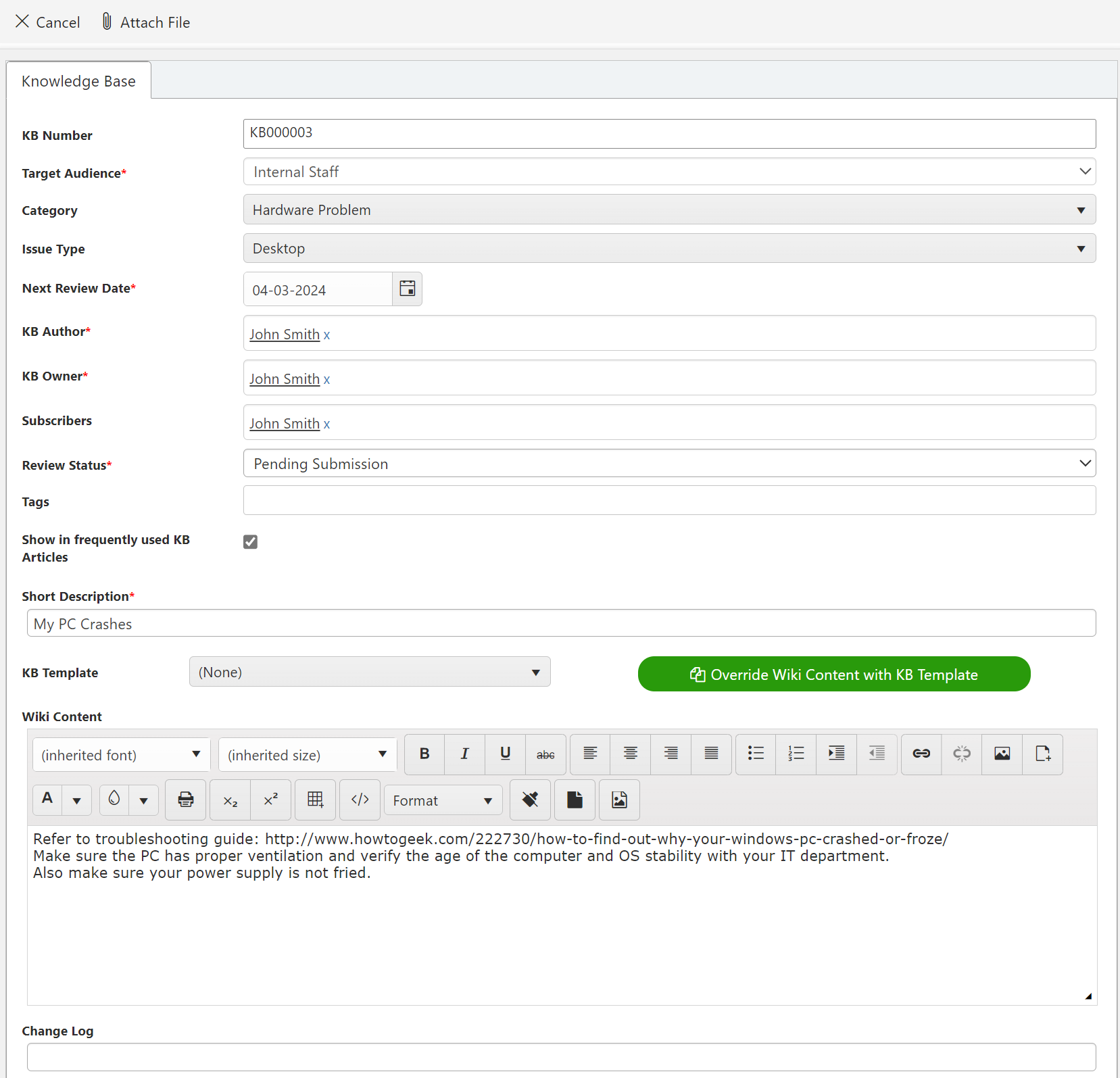
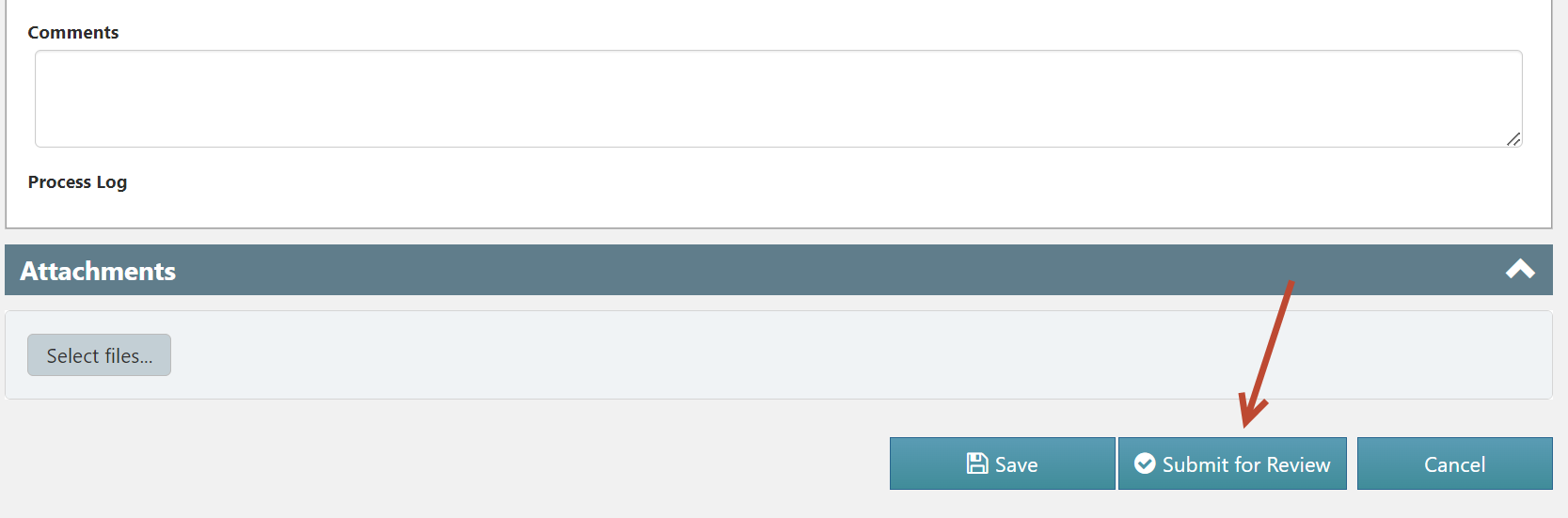
After updating details, click ‘Submit for Review’ button to send article for review.
Retire
Execute this custom action to retire the article. Owners and users in ‘KBAuthor’ and ‘KB Owner’ column can perform this action when article status is published and review status is not in pending review state. When retire process is initiated, reviewers will be notified.
When this custom action is executed, a message will be displayed as shown below
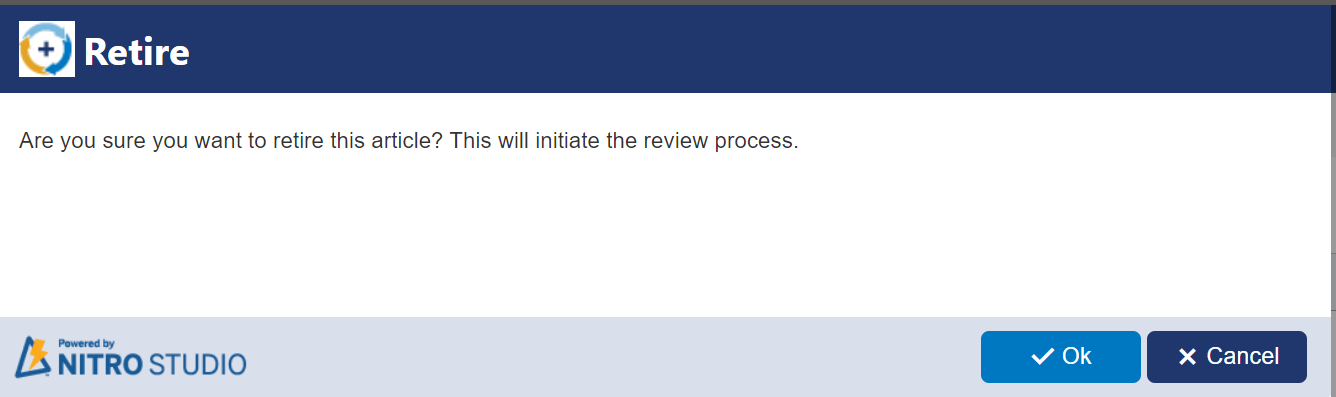
Clicking ‘Ok’ button will further initiate review process. This will open below form.
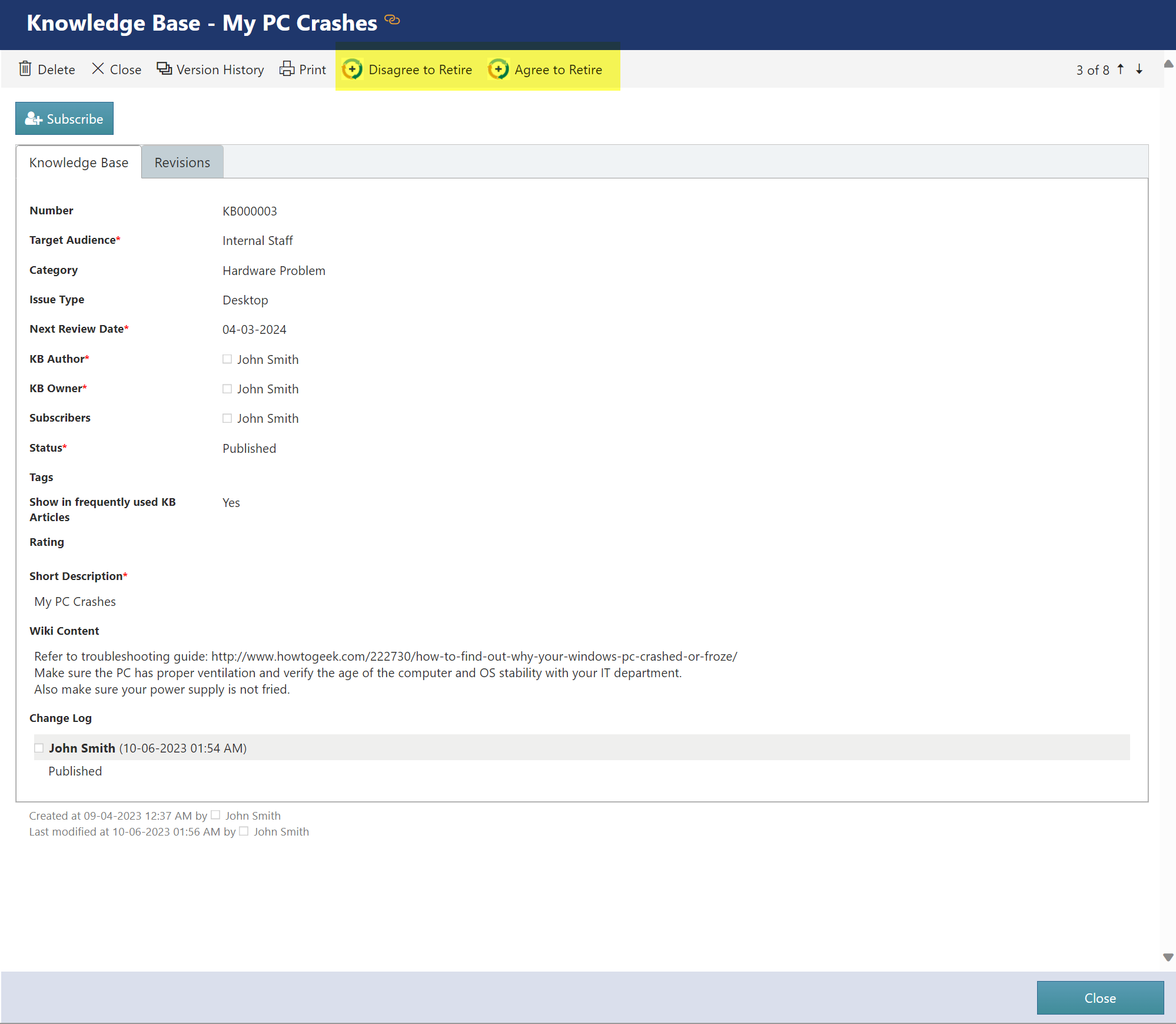
Click ‘Disagree to Retire’ or ‘Agree to Retire’ custom action to accept or reject the retiring article.
Users in column KBOwner has access to these custom actions when status of article is in published state, review status is in pending review state and review type is equal to retire. If KB article is retired, then subscribers and author will be notified. If KB retire request is rejected, then author will be notified.